Make Integration
Connect TwitterShots with powerful automation workflows using Make's visual automation platform.
🔗 TwitterShots Make Integration
Use Cases
Automate Content Creation
Generate tweet screenshots automatically when new tweets are posted. Perfect for repurposing content across Instagram, TikTok, LinkedIn, and other platforms.
Streamline Workflows
Save screenshots directly to cloud storage, send to team channels, or integrate with your content management system.
Bulk Processing
Process multiple tweets at once, generate screenshots in different formats, and organize them automatically based on your workflow needs.
Features
- Visual no-code automation setup
- Multiple output formats (SVG, PNG, HTML)
- Return screenshot as URL or binary file
- Light/dark theme support
- Customizable aspect ratios (1:1, 4:5, 9:16, 16:9)
- Connect with thousands of apps in Make's ecosystem
TwitterShots Modules
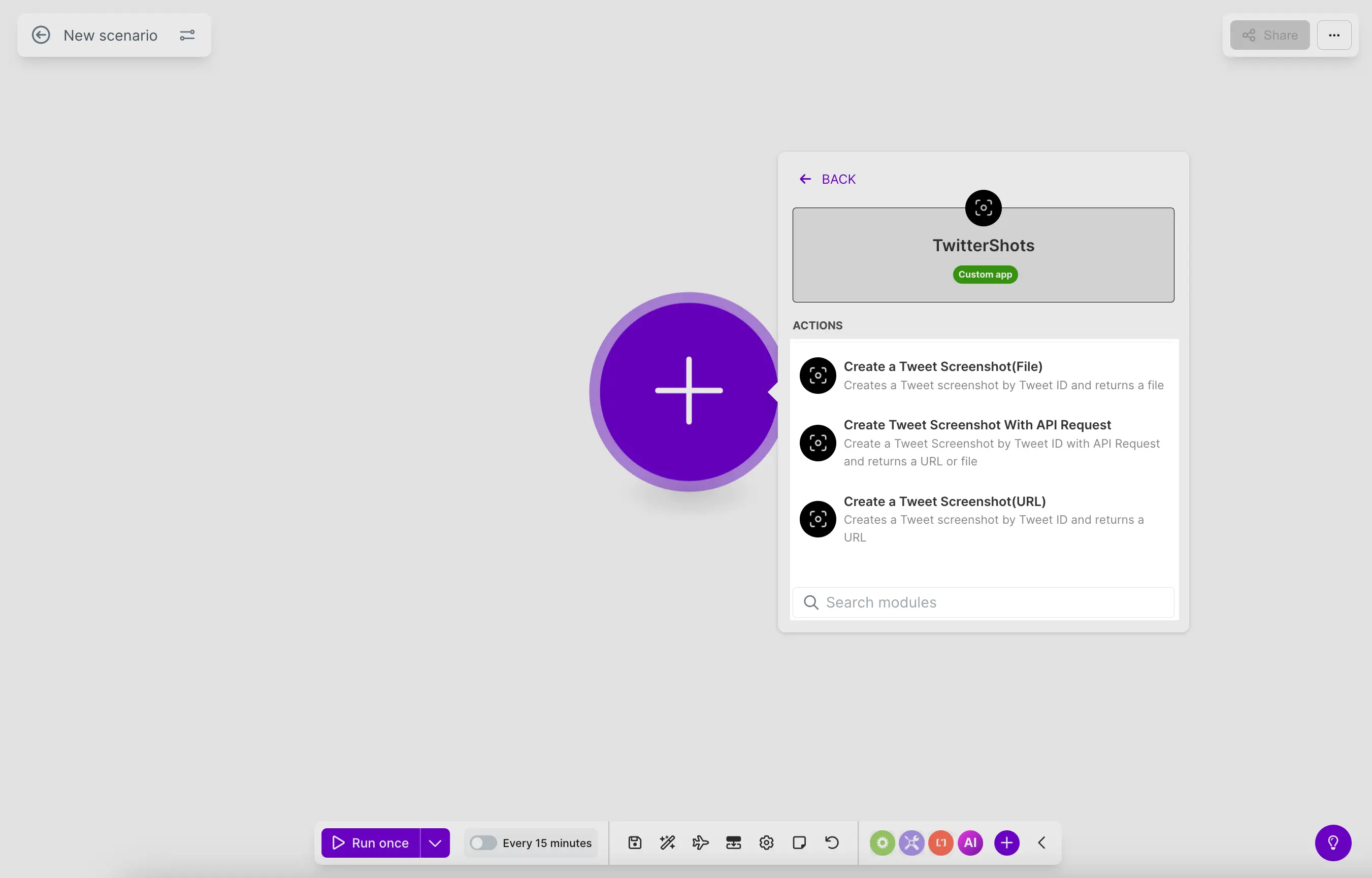
TwitterShots provides three modules(actions) in Make:
1. Create a Tweet Screenshot (File)
Action Module - Returns the screenshot as a binary file
Use this module when you need to:
- Upload screenshots directly to cloud storage (Google Drive, Dropbox, etc.)
- Send files via email or messaging apps
- Process images with other tools that require file input
2. Create a Tweet Screenshot (URL)
Action Module - Returns the screenshot URL
Use this module when you need to:
- Share links in messages or notifications
- Store URLs in databases or spreadsheets
- Use URLs with apps that accept image URLs
3. Create Tweet Screenshot With API Request
Universal Module - Flexible API request module
Use this module for:
- Custom API configurations
- Advanced use cases requiring direct API control
- When you need more flexibility in request handling
Getting Started
Step 1: Create a New Scenario
- Log in to your Make account
- Click "Create a new scenario"
- Set up your trigger module (e.g., Twitter, RSS, Schedule, Webhook)
Step 2: Add TwitterShots Module
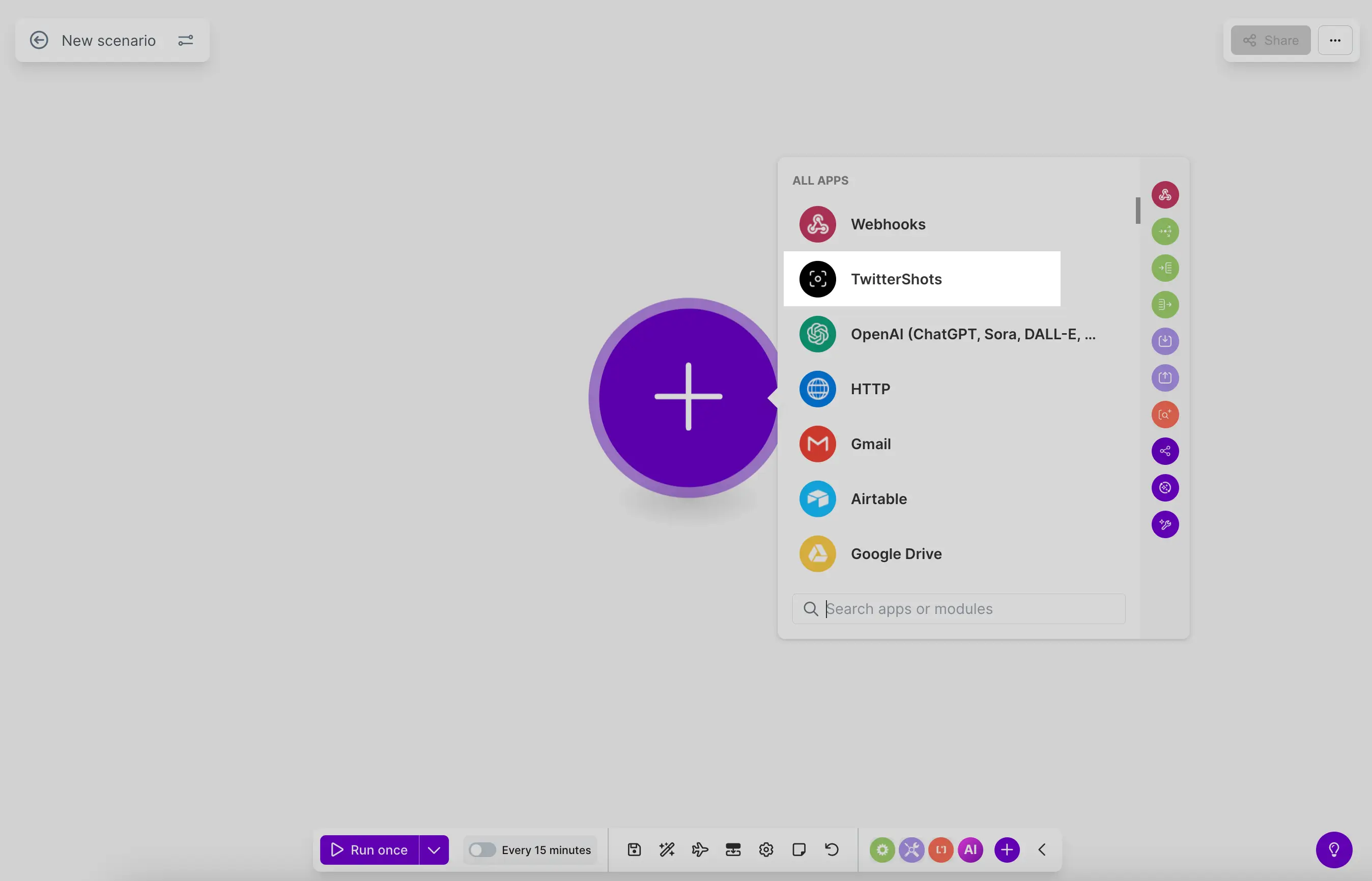
- Click "Add a module" and search for "TwitterShots"
- Select one of the three modules based on your needs:
- Create a Tweet Screenshot (File) - for file outputs
- Create a Tweet Screenshot (URL) - for URL outputs
- Create Tweet Screenshot With API Request - for custom API calls
Step 3: Configure Connection
- Click "Create a connection"
- Enter your API key from TwitterShots Account Settings
- Click "Save" to create the connection
Step 4: Configure Parameters
Set up your screenshot preferences:
- Tweet ID — The tweet status ID or full URL (e.g.,
2012762668986180027orhttps://x.com/elonmusk/status/2012762668986180027) - Theme — Color theme:
light(default) ordark - Format — Output format:
svg(default),png, orhtml - Aspect Ratio — Image aspect ratio:
auto,1:1,4:5,9:16,16:9 - Return Type — For API Request module:
url(default) orbuffer
Step 5: Map Your Data
Map data from previous modules to TwitterShots fields. For example:
- Map tweet ID from a Twitter trigger to the Tweet ID field
- Use data from previous steps to customize theme or format
Step 6: Test and Run
- Click "Run once" to test your scenario
- Review the generated screenshot output
- Activate your scenario to start automating
Example Workflows
1. Tweet → Instagram Post
- Trigger: New tweet posted on X (Twitter)
- Action 1: TwitterShots - Create screenshot (File) with 4:5 or 9:16 aspect ratio
- Action 2: Instagram - Upload photo with the screenshot file
2. RSS Feed → Google Drive
- Trigger: New item in RSS feed
- Action 1: TwitterShots - Create screenshot (File) from tweet URL in feed
- Action 2: Google Drive - Upload file to specific folder
3. Webhook → Slack Notification
- Trigger: Webhook receives tweet URL
- Action 1: TwitterShots - Create screenshot (URL)
- Action 2: Slack - Send message with screenshot URL
4. Schedule → Bulk Processing
- Trigger: Schedule (daily/weekly)
- Action 1: Twitter - Search tweets with hashtag
- Action 2: TwitterShots - Create screenshots for each tweet
- Action 3: Google Drive - Save all screenshots to folder
API Configuration
For advanced users using the API Request module:
Endpoint: https://api.twittershots.com/api/v1/screenshot/{tweetId}
Method: GET
Headers:
X-API-KEY: YOUR_API_KEY
Accept: application/json
Query Parameters:
returnType:url(default) orbufferformat:svg(default),png,htmltheme:light(default),darkaspectRatio:auto,1:1,4:5,9:16,16:9
Response Example:
{
  "url": "https://i.twittershots.com/twitter-screenshots/2026/01/13/tweet-2006418448524464253-e49229b7.png",
  "format": "png",
  "tweetId": "2006418448524464253"
}
Tips & Best Practices
- Choose the right module: Use File module for direct uploads, URL module for sharing links
- Use SVG format for highest quality screenshots that scale perfectly
- Set aspect ratios based on your target platform (4:5 for Instagram, 9:16 for TikTok)
- Test scenarios before activating to ensure proper data mapping
- Handle errors by adding error handling modules in your scenario
Rate Limits
- Free & Pro: 5 screenshots (trial)
- Pro+: 1,000 screenshots / month
- Business: 6,000 screenshots / month