Zapier Integration
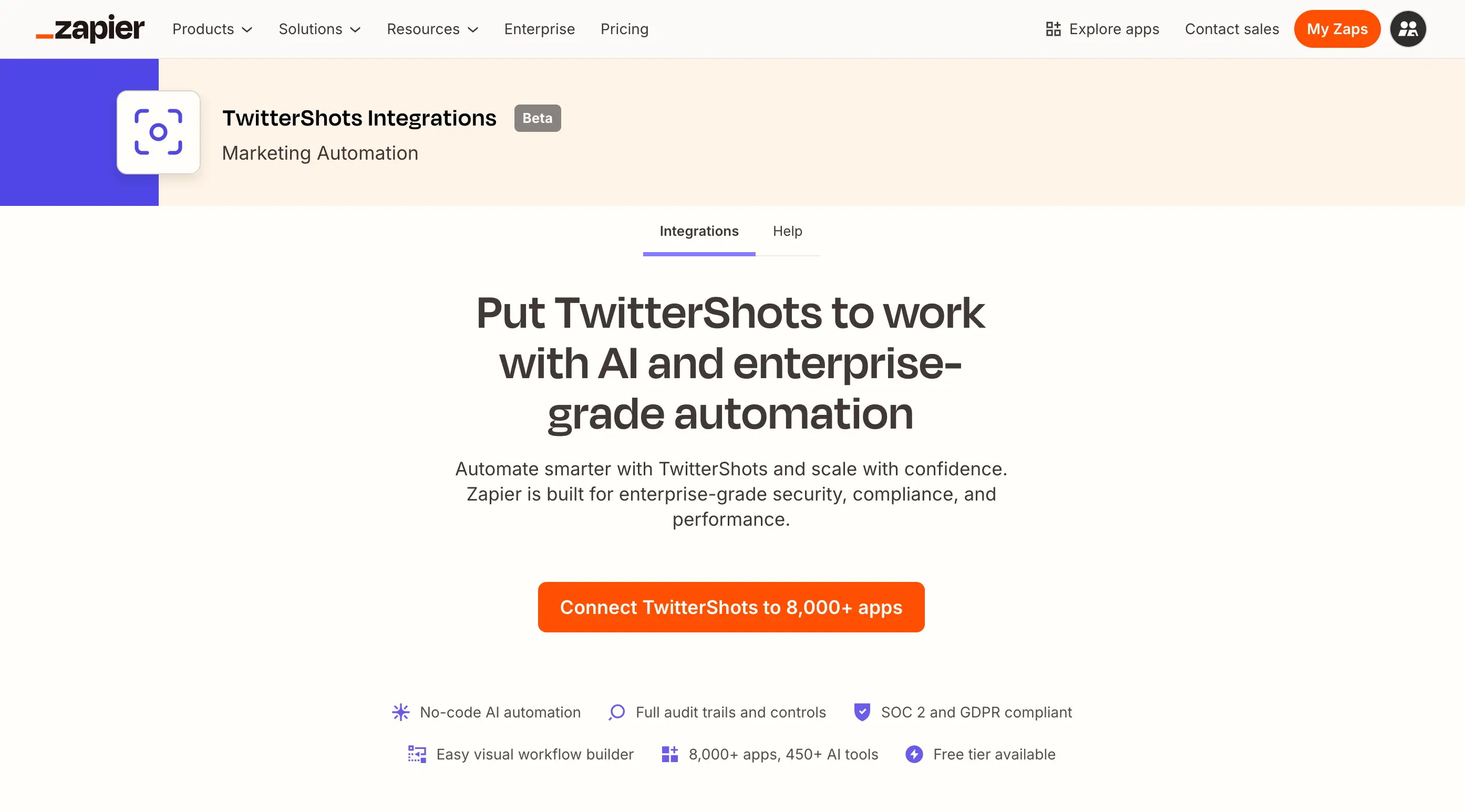
Connect TwitterShots with content create apps using Zapier's automation platform.

🔗 TwitterShots Integrations on Zapier
Use Cases
Automate Content Creation
Turn tweets into shareable images instantly. Automatically generate beautiful screenshots when you post a new tweet, making it easy to repurpose content across Instagram, LinkedIn, and other platforms.
Monitor Activity
Keep track of important tweets or website changes automatically. Set up triggers to capture screenshots of tweets from specific accounts or hashtags you're monitoring.
Streamline Workflows
Save screenshots directly to your preferred storage or communication tools. Send generated images to Google Drive, Dropbox, Slack, or any of Zapier's 7,000+ supported apps.
Features
- Simple no-code automation setup
- Multiple output formats (SVG, PNG, HTML)
- Light/dark theme support
- Customizable logo options (X, bluebird, or none)
- Configurable display options (full text, timestamp, view count, statistics)
- Connect with 7,000+ apps in Zapier's ecosystem
Tweet Screenshot Actions
TwitterShots provides screenshot actions in Zapier:
- Create twitter screenshot: pass your Tweet URL or X Post Id, create a tweet screenshot file instantly.
Getting Started
Step 1: Create a new Zap
Log in to your Zapier account and click "Create Zap" to start building your automation workflow.
Step 2: Set up your trigger app
Choose a trigger app that will start your workflow. For example:
- X (Twitter): Trigger when you post a new tweet
- RSS: Trigger when a new item appears in a feed
- Schedule: Trigger at specific times
Step 3: Add TwitterShots action
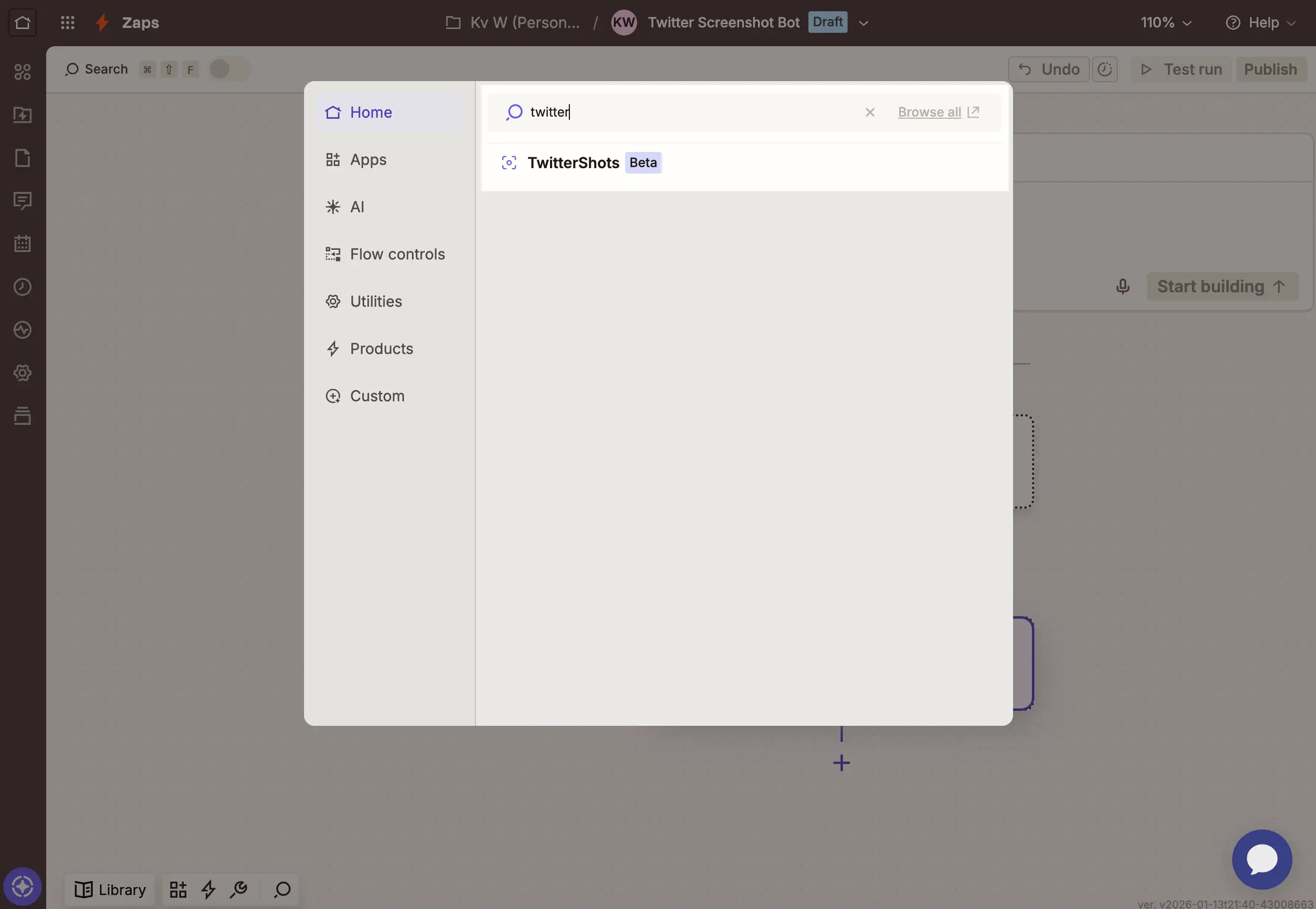
- Add a new action step and search for "TwitterShots"
- Connect your TwitterShots account using your API key
- Get your API key from settings/keys "set api key in account"
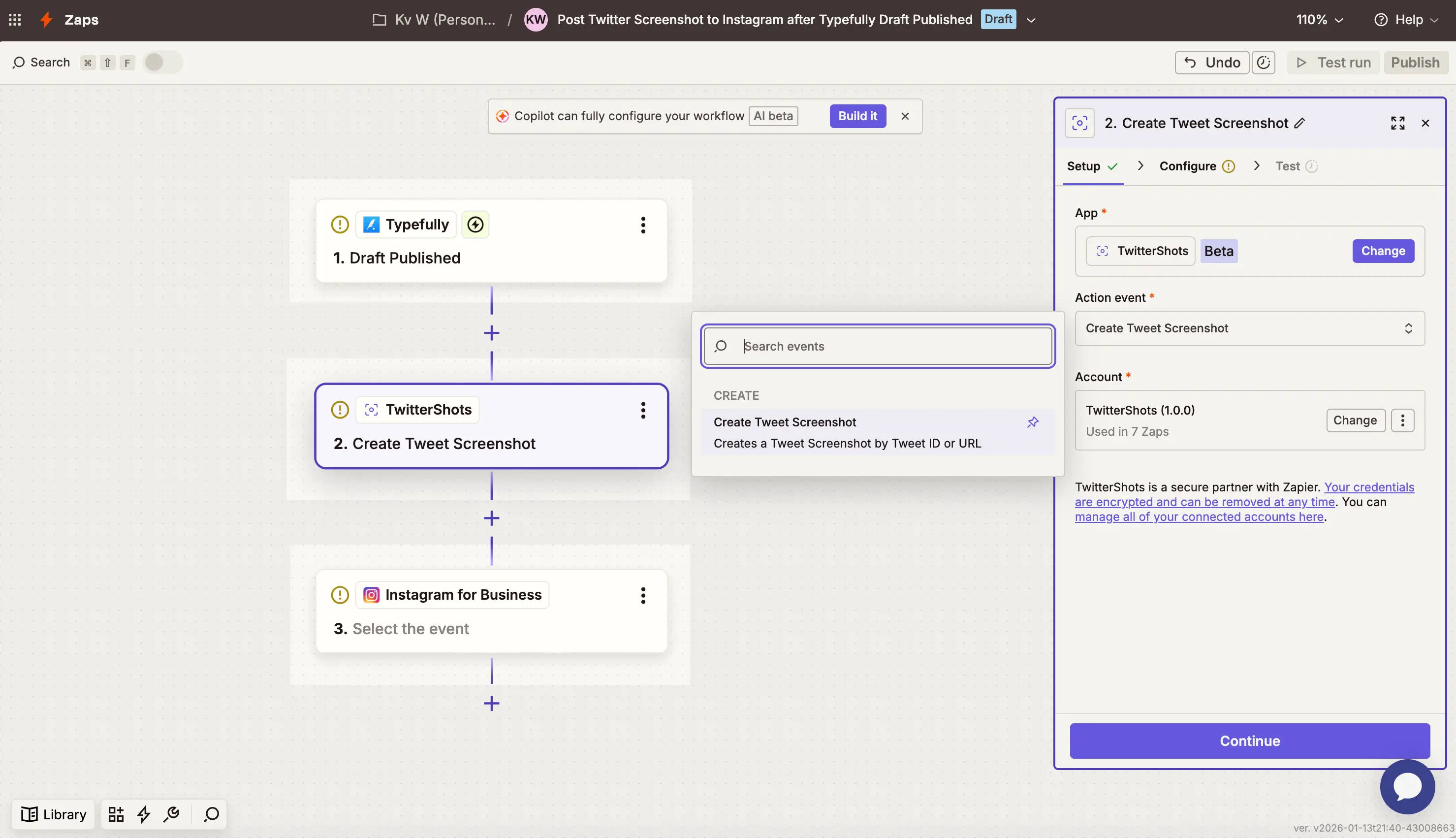
- Choose the action: "Create Twitter screenshot"
Step 4: Configure the action
Set up your screenshot preferences:
- Tweet ID — The tweet status ID or full URL, e.g., 2010458942296760556
- Theme — Color theme: light or dark
- Format — Output format: svg (recommended), png
- Logo — Logo style: x, bluebird, or none
- Response Type — Return type: buffer (recommended) or url
- Show Full Text — Display complete tweet text: true / false
- Show Timestamp — Display tweet timestamp: true / false
- Show Views — Display view count: true / false
- Show Stats — Display engagement stats: true / false
- Container Background (optional) — Container background color
- Default: Matches tweet area background color (#ffffff for light theme, #000000 for dark theme)
- Custom: Supports multiple color formats:
- Hex colors: #2E3748, #f0f0f0, #2563eb
- RGBA colors: rgba(255, 0, 0, 0.5), rgba(0, 0, 0, 0.8)
- Linear gradients: linear-gradient(90deg, #003f5b, #2b4b7d, #5f5195, #98509d, #cc4c91, #f25375, #ff6f4e, #ff9913)
- Background Image (optional) — Background image URL for the screenshot
- Default: No background image
- Custom: HTTPS URL to an image file
- Recommended: Use HTTPS URLs for better security and compatibility
- Container Padding (optional) — Container padding value
- Default: 16 (16px padding)
- Custom: Any numeric value in pixels
- Border Radius (optional) — Border radius value
- Default: 16 (16px border radius)
- Custom: Any numeric value in pixels
Step 5: Map your data
Map data from your trigger to the TwitterShots action. For example, if your trigger is a new tweet, map the tweet ID to the Tweet ID field.
Step 6: Test and activate
- Test your Zap to ensure everything works correctly
- Review the generated screenshot
- Turn on your Zap to start automating!
Example Workflows
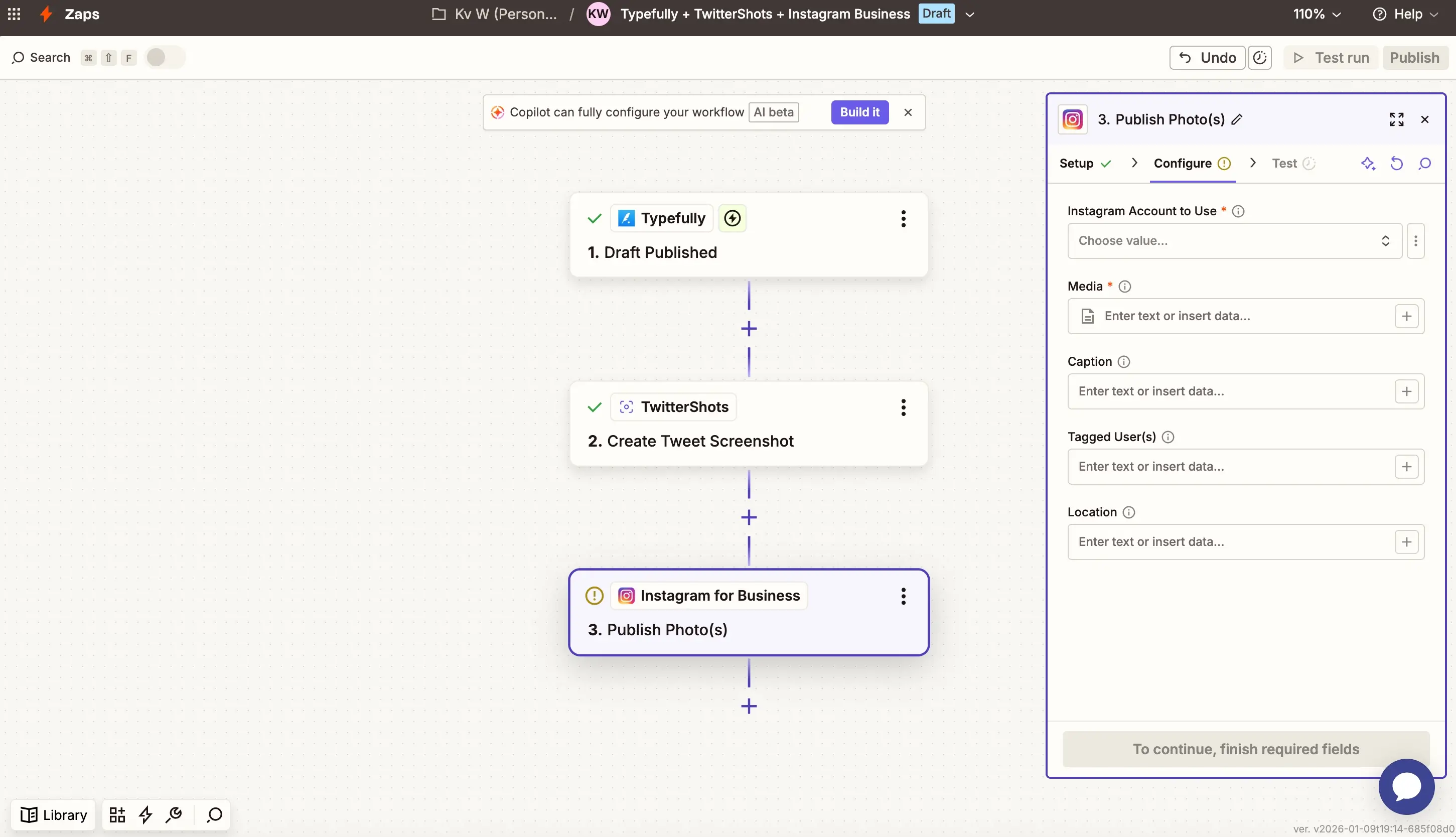
1. Tweet → Instagram Post
- Trigger: New tweet posted on X or Typefull Draft published
- Action 1: TwitterShots - Create screenshot with Instagram-optimized settings: 4:5 aspect ratio or 9:16
- Action 2: Instagram for Business - Schedule Instagram post with the screenshot
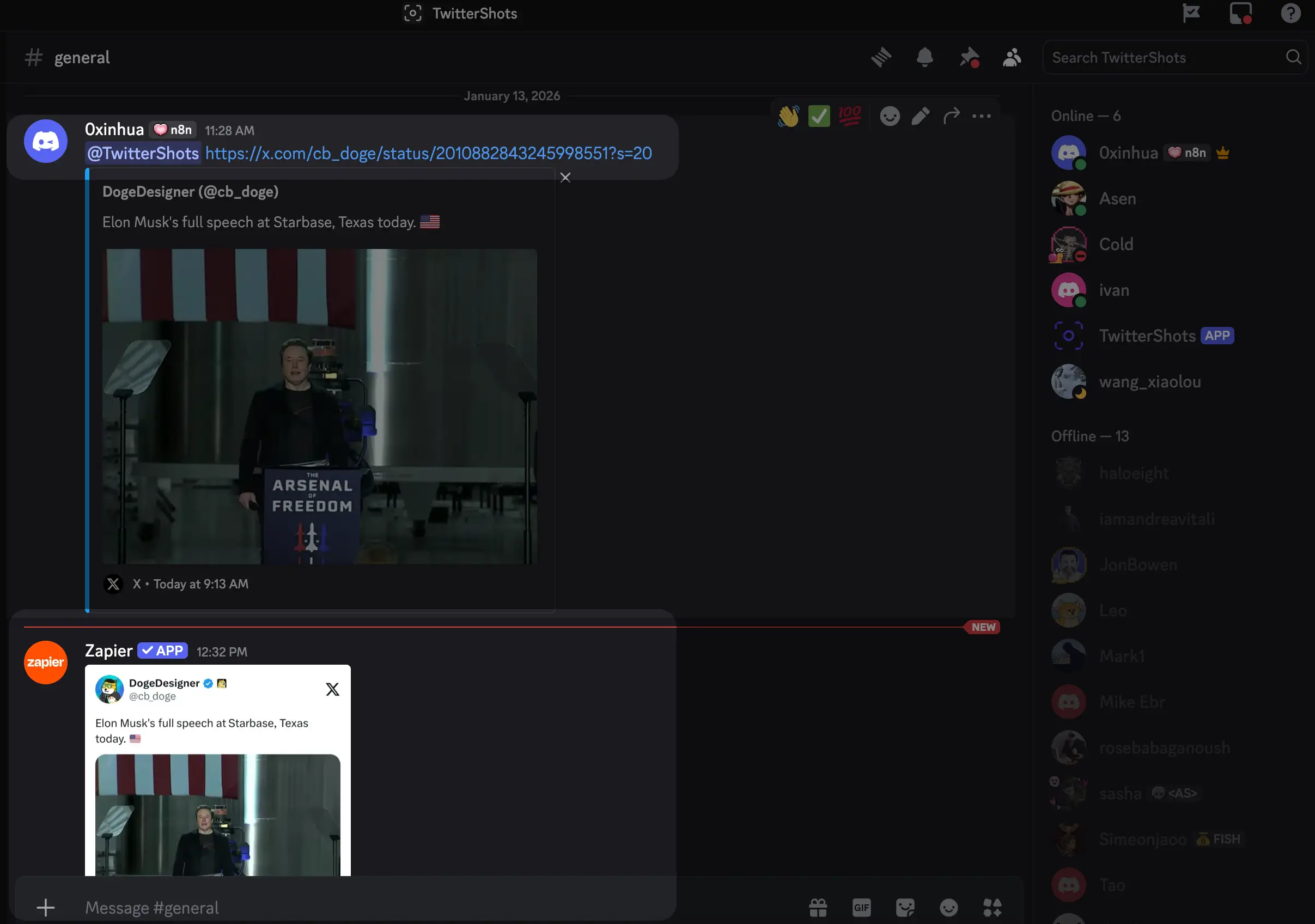
2. Tweet Screenshot Bot → Discord
- Trigger: New tweet url from a Discord channel
- Action 1: TwitterShots - Generate screenshot
- Action 2: Discord - Send screenshot to channel
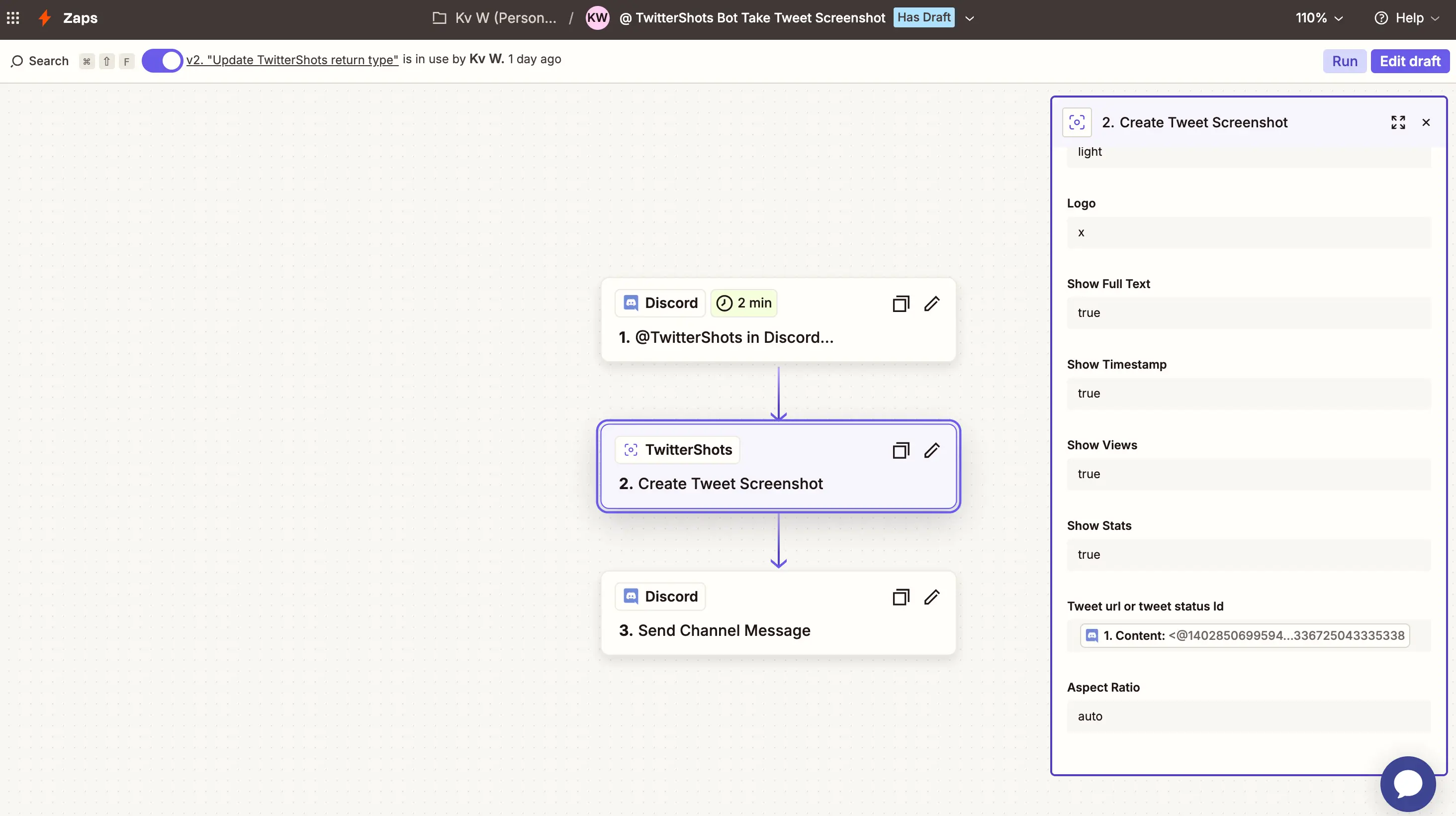
you can try in @TwitterShots Discord channel here: twittershots bot channel
Daily Digest → Google Drive
- Trigger: Schedule (daily)
- Action 1: X - Search tweets with specific hashtag
- Action 2: TwitterShots - Generate screenshots
- Action 3: Google Drive - Save to folder
API Configuration
For advanced users who need direct API access:
{
  "endpoint": "https://api.twittershots.com/api/v1/screenshot/{tweetId}",
  "method": "GET",
  "headers": {
    "X-API-KEY": "YOUR_API_KEY"
  },
  "queryParameters": {
    "theme": "light",
    "format": "svg",
    "logo": "x",
    "showFullText": "true",
    "showTimestamp": "true",
    "showViews": "true",
    "showStats": "true",
    "containerBackground": "#ffffff",
    "backgroundImage": "https://images.unsplash.com/photo-1604079628040-94301bb21b91?q=80&w=987&auto=format&fit=crop&ixlib=rb-4.1.0&ixid=M3wxMjA3fDB8MHxwaG90by1wYWdlfHx8fGVufDB8fHx8fA%3D%3D",
    "containerPadding": 16,
    "borderRadius": 16
  }
}
Tips & Best Practices
- Use SVG format for the highest quality screenshots that scale perfectly
- Use buffer response type when you need to directly attach images to other apps
- Test with different themes to match your brand aesthetics
- Set up error handling in Zapier to catch any failed screenshot generations