TwitterShots Plugin
Create PNG screenshots of public X posts and check your remaining quota in ChatGPT or Codex.
Install and use
The screenshots below show the Codex desktop app; the plugin is also available in supported ChatGPT surfaces when enabled for your account.
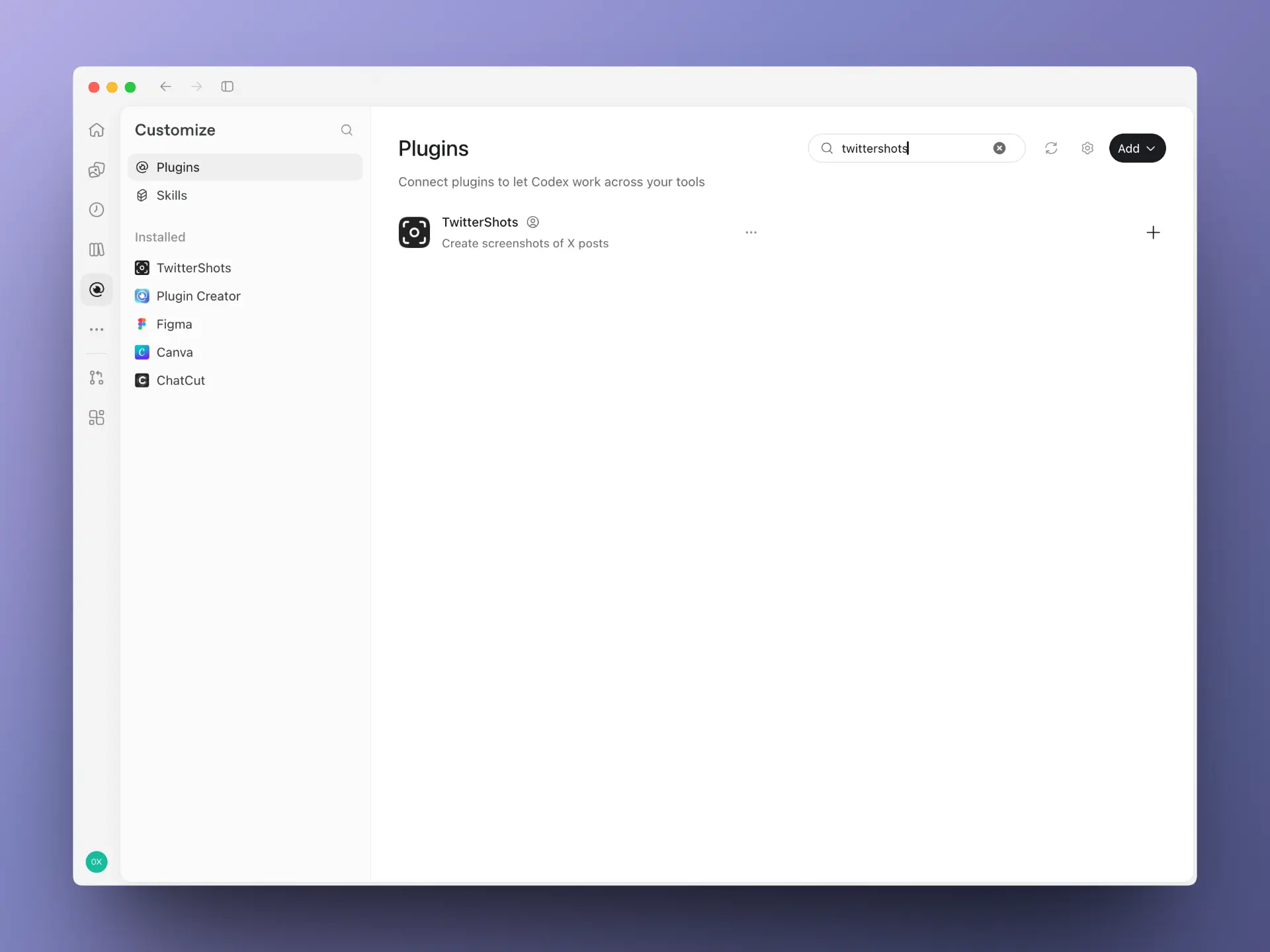
1. Find TwitterShots
Open Plugins and search for TwitterShots, then select and install it.
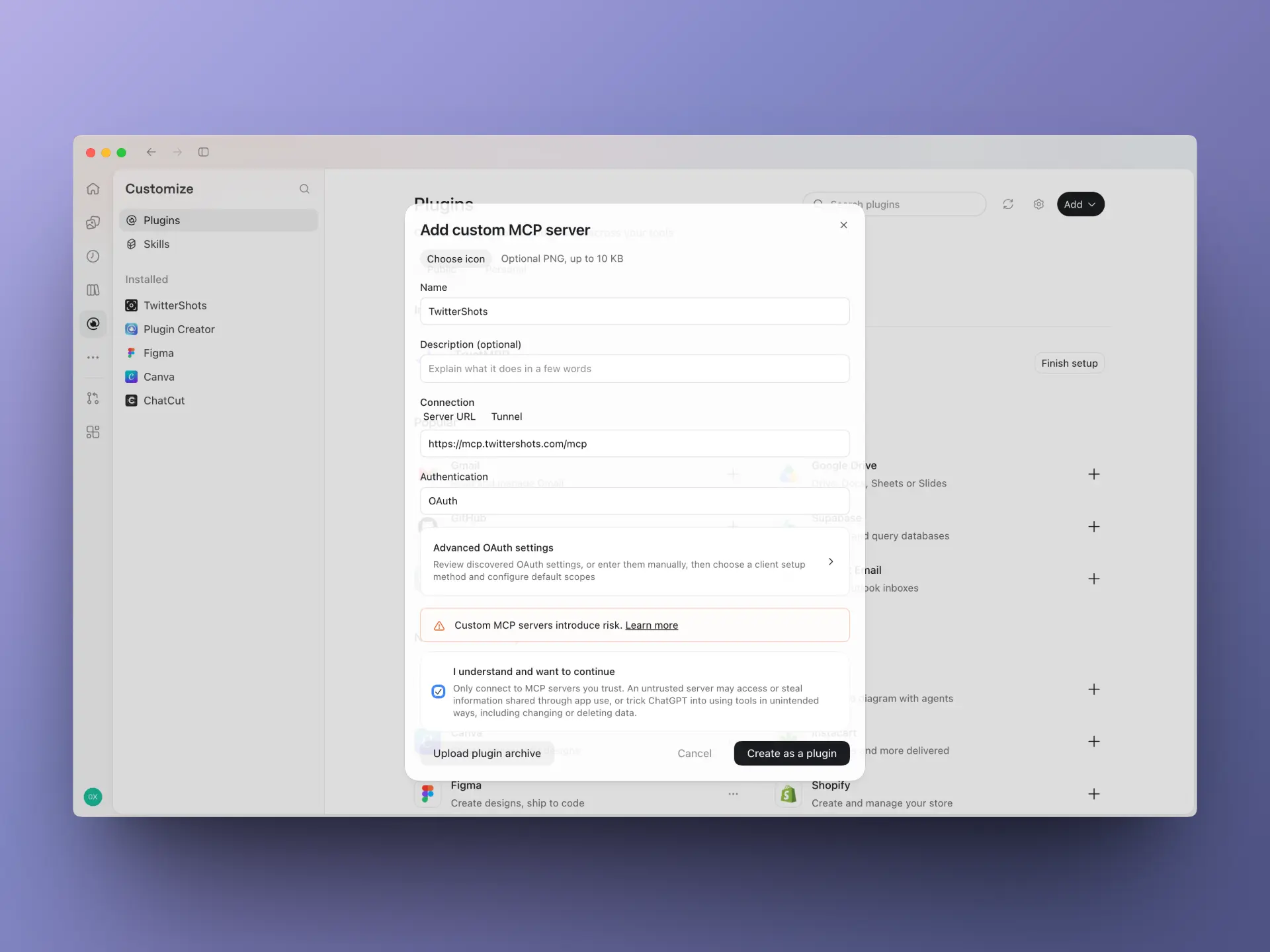
To add the remote server manually, open Plugins → Add → Add custom MCP server. Enter TwitterShots as the name, paste https://mcp.twittershots.com/mcp into Server URL, select OAuth, and choose Create as a plugin.
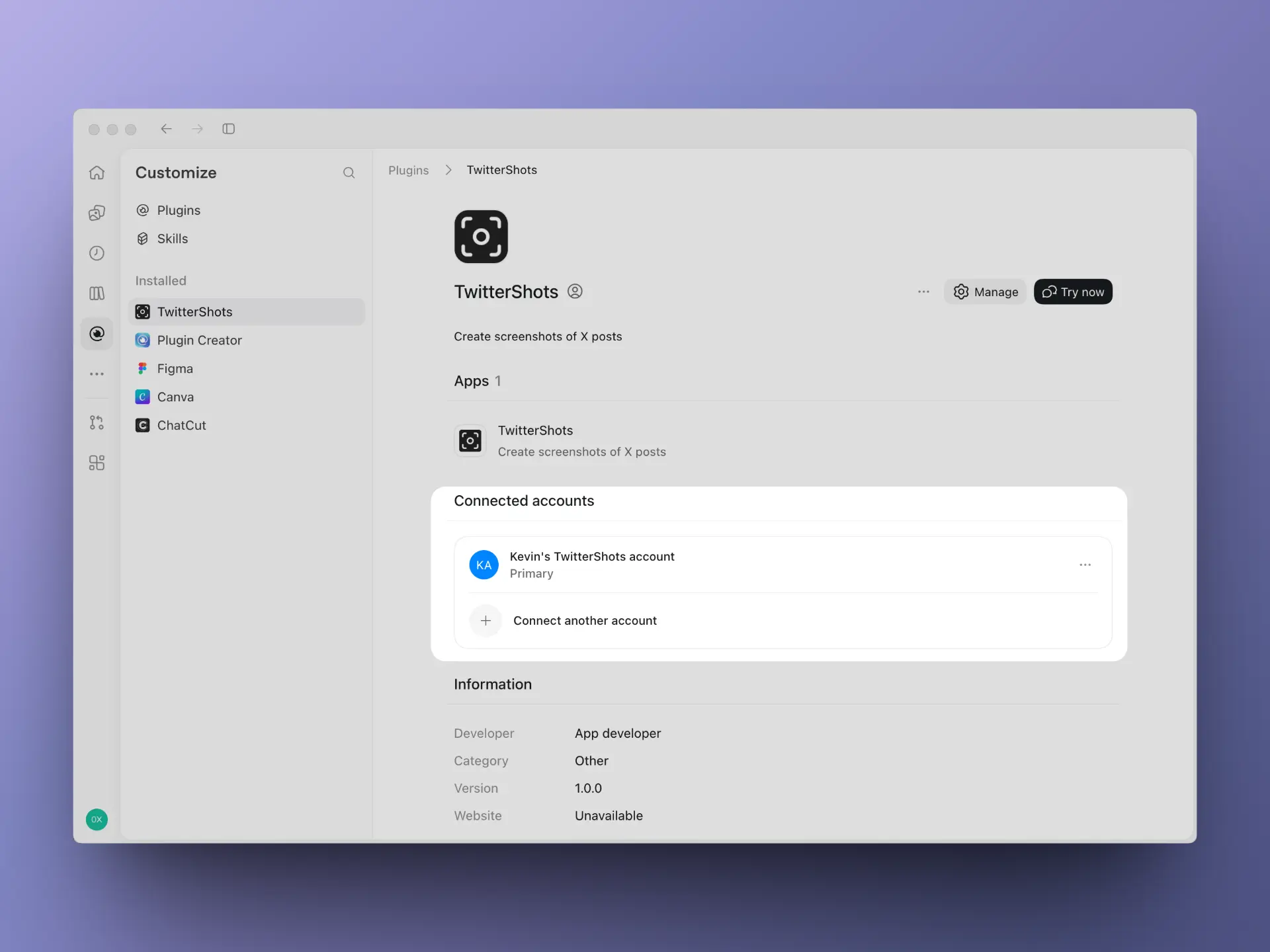
2. Connect your account
Sign in with your TwitterShots account and approve the OAuth permissions when prompted. No API key needs to be pasted into the client.
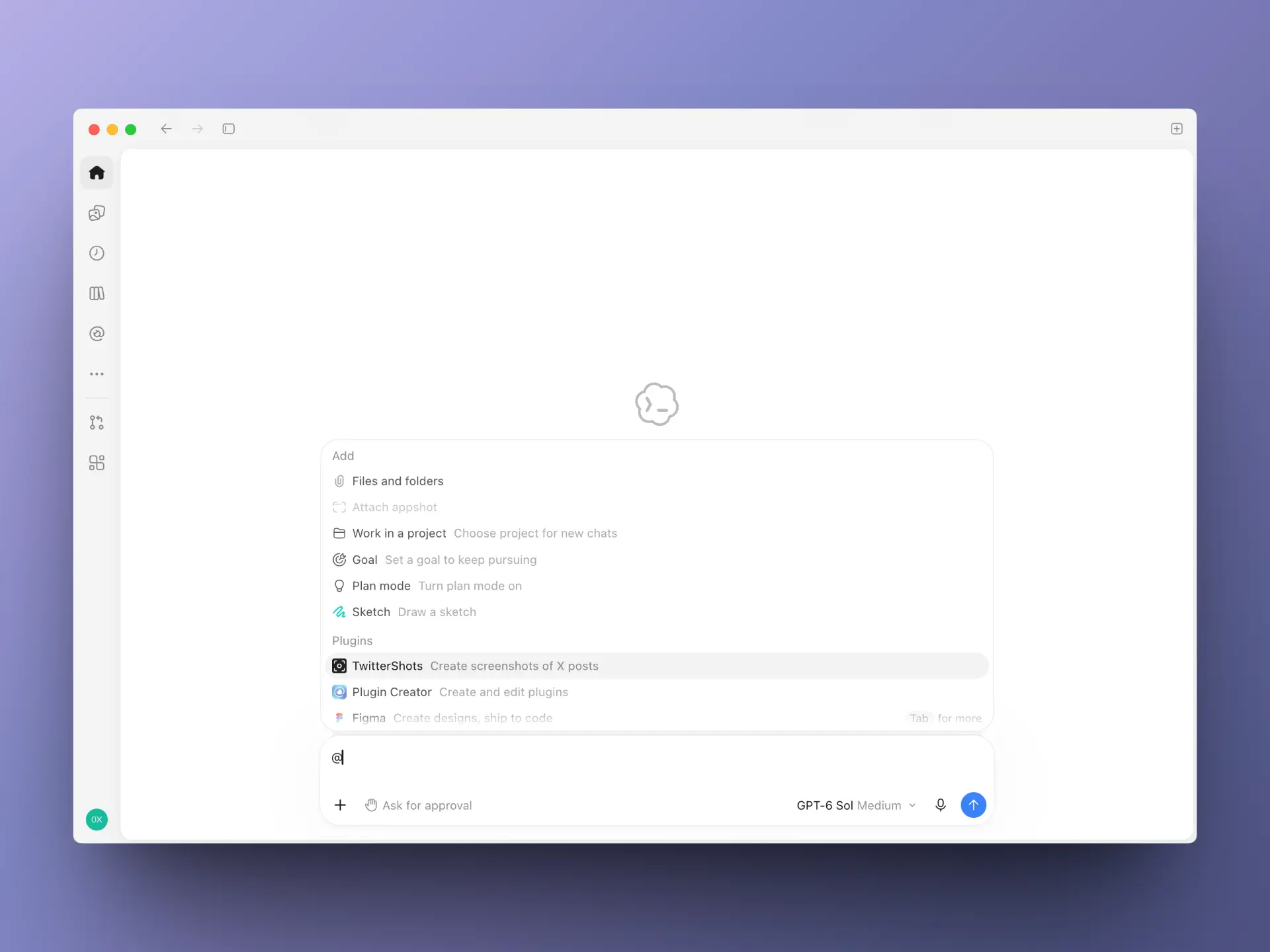
3. Select the plugin
In a new chat, type @ and choose TwitterShots from the plugin list.
4. Try a screenshot
Ask: “Create a dark, square screenshot of https://x.com/elonmusk/status/2108321181602353333”. The plugin uses your screenshot quota and returns a public, shareable PNG link.
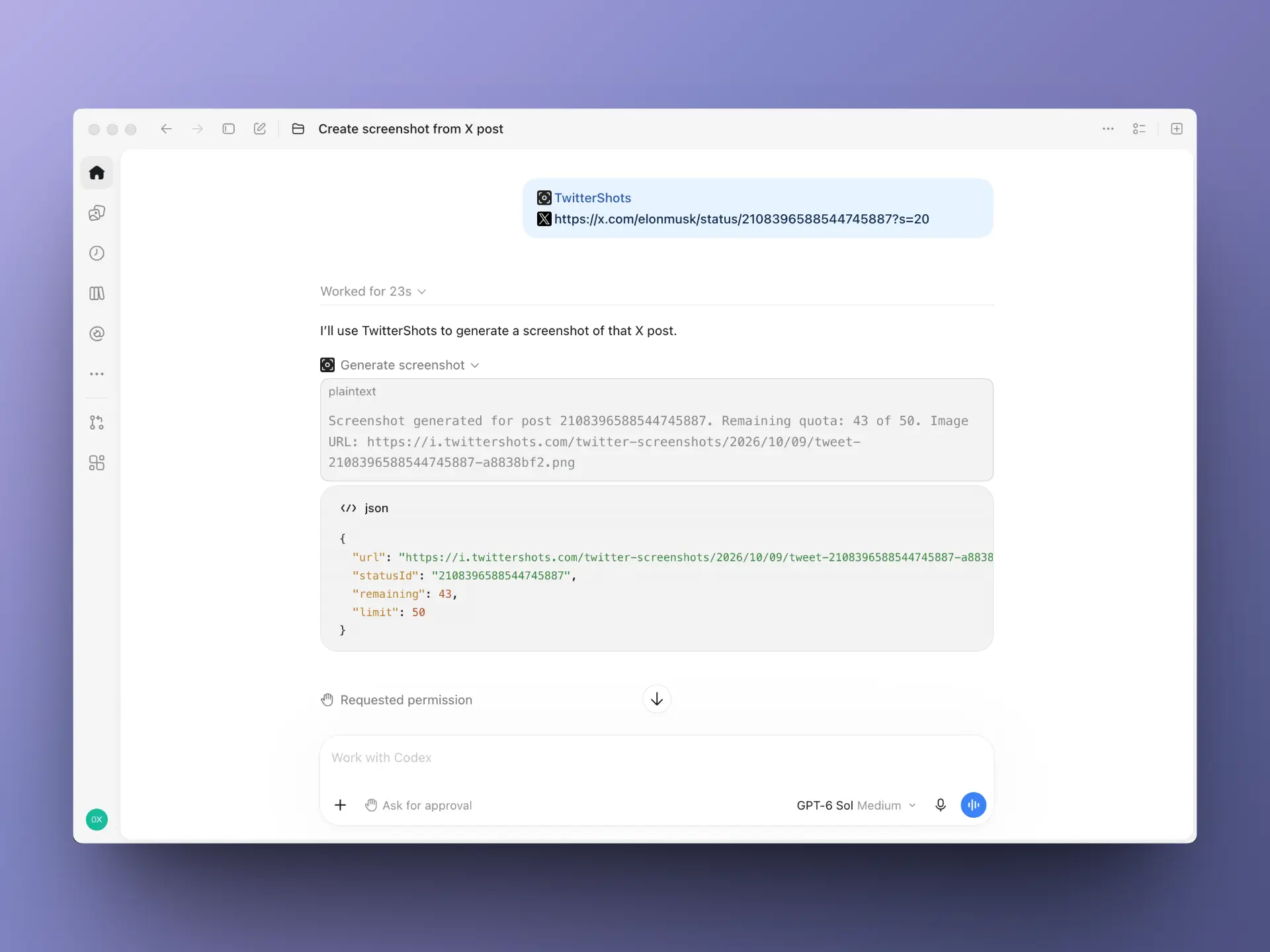
The plugin can check quota and create screenshots of public posts. It cannot read private posts, summarize text, edit images, or publish to X.
Before creating screenshots, create an API key. Free accounts include 50 API credits; you do not need to paste the key into the plugin.
For other AI clients, use the remote MCP server. See our Terms of Service and Privacy Policy.