Survives the inbox
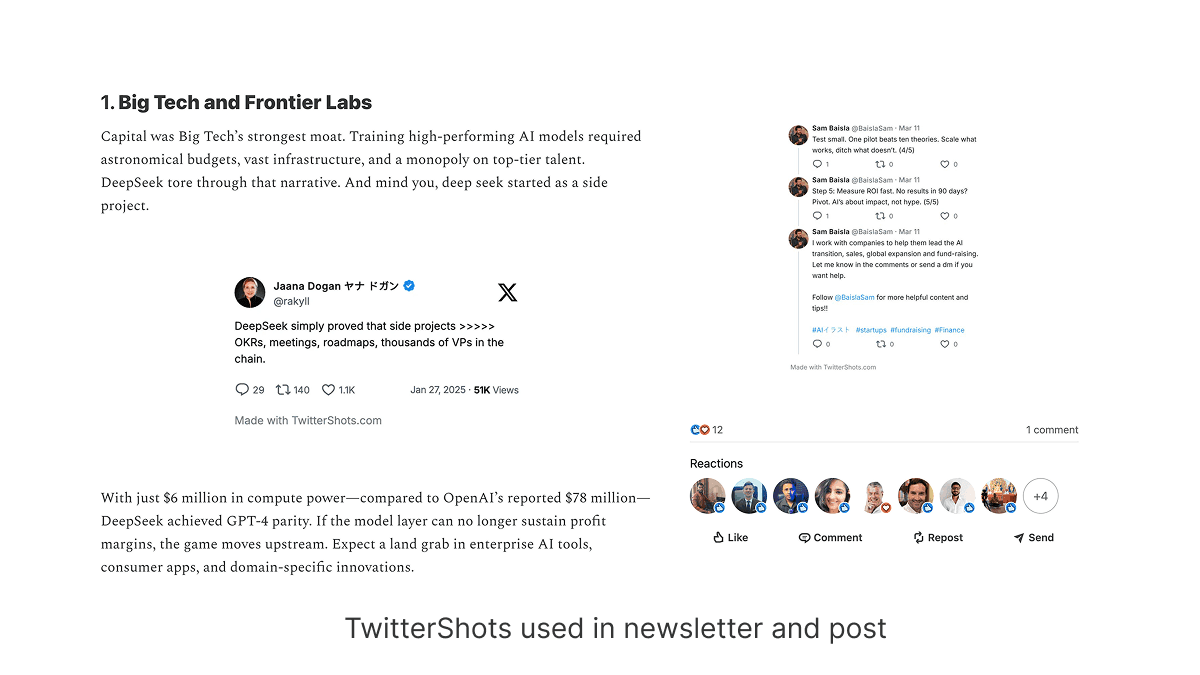
A screenshot is a file you own. Deleted tweets, broken X embeds, and flaky email clients do not empty last month's issue.
Turn X/Twitter posts into tweet screenshots for newsletter issues that still look right after a tweet is deleted or an embed fails in the inbox.
Direct answer
Rendered images of X/Twitter posts you drop into an email issue. They keep the tweet readable if the original is deleted, and they match one theme across the roundup. Native embeds often fail in Gmail and Apple Mail. Phone screenshots bring status bars and a different crop every week.
Why screenshots beat embeds
The capture engine is the same product. This page exists so “tweet screenshots for newsletter” has one owner URL instead of falling through as a username screenshot.
A screenshot is a file you own. Deleted tweets, broken X embeds, and flaky email clients do not empty last month's issue.
Apply the same light or dark treatment across the roundup so the issue looks designed, not like a folder of phone crops.
Drop PNGs into Substack, beehiiv, or ConvertKit. Keep a ZIP per issue, or export a PDF backup of the whole set.
Paste a list into bulk screenshot. This page owns the newsletter workflow. The bulk page owns the batch feature.
Four-step workflow
Paste this week’s URLs, apply one theme, export, drop into the editor.
Copy public post links for this week's roundup, quotes, launches, or social proof.
Open bulk screenshot and paste one URL per line. Use the core generator for a single quote.
Pick light or dark once so every image in the send matches.
Download PNG, ZIP, or PDF, then upload as inline images in Substack, beehiiv, or ConvertKit.
Scene vs feature
This page owns the for-newsletter scene. Bulk screenshot owns the batch feature. Titles should not both read as bulk pages.
Who this is for
Weekly roundups and quote issues that still look right in Gmail and Apple Mail.
Curated X posts as AI newsletter tweet images: same theme, same size, ZIP out, next issue.
Keep visual consistency across issues without rebuilding every tweet in Figma.
Batch the week's posts, then add a logo on Pro+ if the recap needs branding.
Frequently asked questions
Paste this week’s URLs, apply one theme, export, drop into the editor.