Turn a Tweet into an Animated MP4 Video
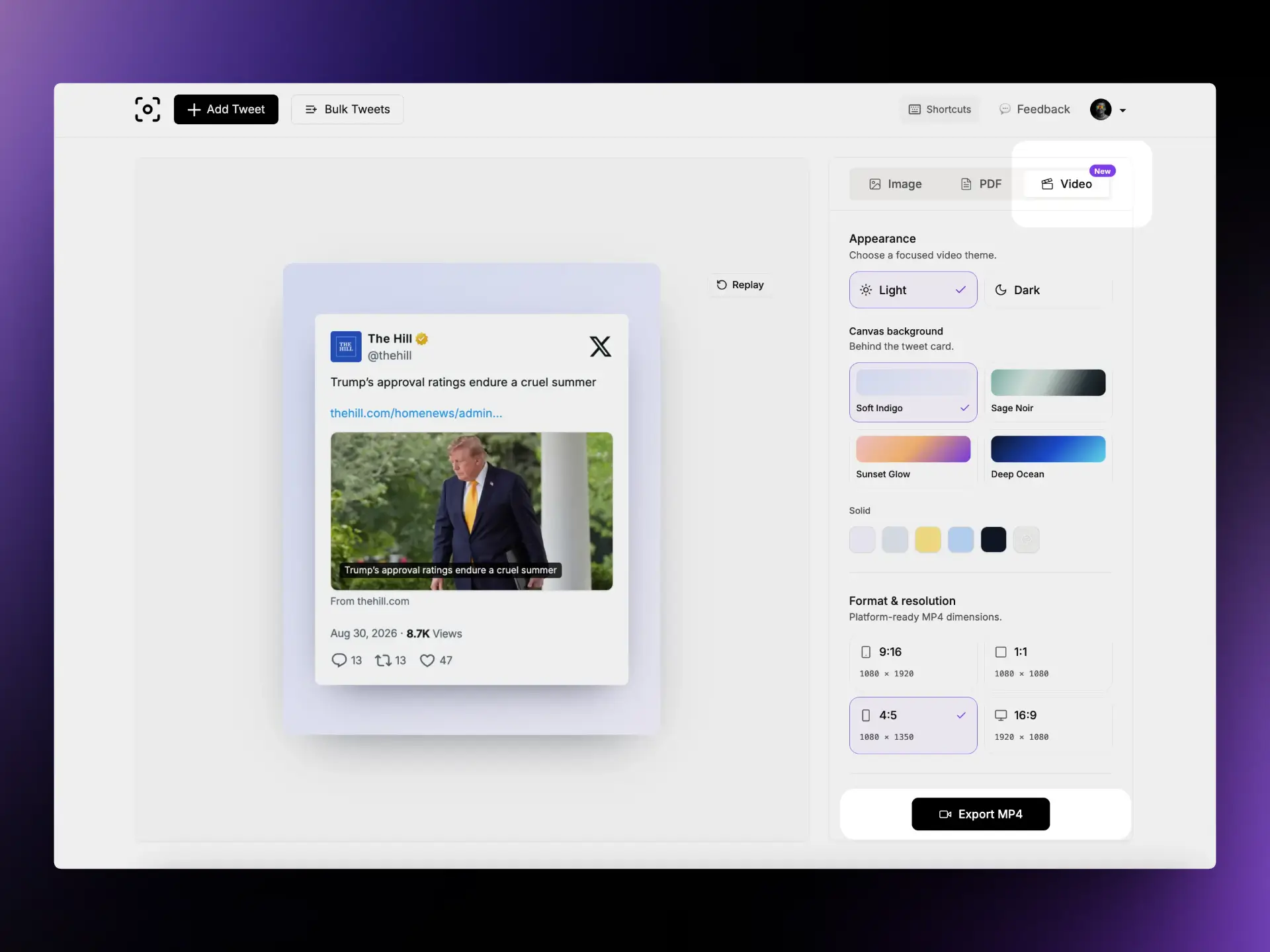
TwitterShots now adds tweet to video export directly beside Image and PDF. Open a published Twitter or X post, switch to the new Video tab, customize the composition, preview the animation, and export a social-ready MP4 without rebuilding the post in a separate video editor.
A Faster Way to Repurpose Tweets as Video
A strong post should not be limited to the Twitter or X timeline. Creators often want to reuse the same idea on Instagram Reels, YouTube Shorts, LinkedIn, TikTok, or another visual feed, but manually recreating the author, text, media, timestamp, and engagement metrics takes time. Generic video templates can also make a real post feel more like an advertisement than a recognizable social update.
The new Video tab keeps the familiar TwitterShots tweet card and adds only the motion needed to present it clearly. The result is an animated tweet video that preserves the post’s identity while making it easier to distribute across video-first platforms.
What You Can Customize
The Video workspace focuses on a short set of choices that have a visible effect on the final MP4:
- Choose a Light or Dark theme for the tweet card itself.
- Set the canvas behind the card to Soft Indigo, Sage Noir, Sunset Glow, or Deep Ocean.
- Use a solid background preset or select a custom solid color.
- Export vertical 9:16 at 1080×1920 for Reels, Stories, TikTok, and Shorts.
- Export square 1:1 at 1080×1080 or portrait 4:5 at 1080×1350 for social feeds.
- Export landscape 16:9 at 1920×1080 for widescreen posts and presentations.
- Choose a 3-second Quick, 5-second Standard, or 10-second Extended duration.
The canvas background and tweet theme are independent. A dark tweet can sit on a light gradient, and a light tweet can sit on a deep solid color. This keeps the post readable while giving the surrounding video enough visual character for different channels.
Three Focused Animation Presets
Choose one restrained animation that keeps attention on the tweet:
- Fade & rise: the card enters with a subtle upward fade.
- Count up: reply, repost, like, and view metrics animate to their final values.
- Static: exports the composition without motion.
Choose 3 seconds for a quick post, 5 seconds for the balanced default, or 10 seconds for more reading time. Each option holds the final frame after the animation finishes.
How to Convert a Tweet to MP4
- Open the TwitterShots editor and paste the URL of a public Twitter or X post.
- Switch to the Video tab beside Image and PDF.
- Choose the tweet theme and the background behind the card.
- Select 9:16, 1:1, 4:5, or 16:9 based on where the video will be published.
- Pick Fade & rise, Count up, or Static, then choose a 3, 5, or 10 second duration.
- Use Replay to check the animation in the live preview.
- Select Export MP4 to record, convert, and download the video.
The export flow reports rendering and conversion progress. Recording happens through the browser canvas, and TwitterShots uses its browser-based video pipeline to convert the recording to MP4. If MP4 conversion cannot complete, the exporter can provide the WebM recording instead of losing the finished render.
Built for Social Content Repurposing
The four output formats make one post reusable across several publishing workflows:
- Instagram Reels, TikTok, and YouTube Shorts: use 9:16 for a full-height vertical frame.
- Instagram and LinkedIn feeds: use 1:1 or 4:5 when the post should occupy more feed space without becoming a full-screen video.
- YouTube, presentations, and widescreen posts: use 16:9 for a landscape composition.
- Product launches and social proof: use Count up when visible engagement supports the message.
- Quotes, insights, and commentary: use Fade & rise for a quiet introduction that keeps attention on the text.
This release is designed for a single post at a time. Thread-to-video sequencing, music, a custom keyframe timeline, and Safari-specific recording support remain outside the current scope. MP4 export is available on Pro+ and Business plans, and desktop Chrome is the recommended browser for the first release.
Frequently Asked Questions
How do I convert a tweet to an MP4 video?
Open a public Twitter or X post in TwitterShots, switch from Image to the Video tab, choose the appearance, format, animation, and duration, then select Export MP4. TwitterShots records the composition and converts it to MP4 in your browser.
Which aspect ratios are available for tweet videos?
TwitterShots supports 9:16 at 1080×1920, 1:1 at 1080×1080, 4:5 at 1080×1350, and 16:9 at 1920×1080. These formats cover vertical video, square and portrait feeds, and landscape publishing.
Which tweet video animations can I use?
Choose Fade & rise for a subtle card entrance, Count up to animate engagement metrics, or Static when you want a motionless composition exported as video.
Can I customize the tweet video background?
Yes. The tweet card can use a light or dark theme, while the canvas behind it can use one of four named gradients, a solid-color preset, or a custom solid color.
How long can a tweet video be?
Choose a 3-second Quick video, a 5-second Standard video, or a 10-second Extended video. The animation completes near the beginning, leaving the final frame visible for reading.
Who can export tweet videos?
MP4 export is available to TwitterShots Pro+ and Business members. The current release supports one tweet at a time and prioritizes desktop Chrome for browser recording.