Movavi Video Editor Review

Welcome to this Movavi Video Editor review.
I don't like writing reviews based only on what other people say. If I haven't used a product myself, I don't think I can give you a real review.
This time, I'm reviewing a video editor.
Most of my video editing work is for travel vlogs and my product TwitterShots launch videos. To properly test Movavi, I used it to create a short road trip video in Zhangye, Gansu, western China. You can also check out the final video I edited with it.
Before going into the details, here is my overall impression.
I didn't test every single feature, but Movavi Video Editor feels like a solid, stable, and beginner-friendly editor.
If you want to create TikTok videos, travel videos, or product promo videos, you can get started quickly.
What I Like About Movavi
- Clean interface with clearly organized tools
- Quick beginner guides and shortcuts
- Plenty of ready-to-use templates and media
- Useful AI tools for repetitive editing tasks
- Good use of local disk space
Clean and Simple Interface
Like most video editors I've used, Movavi Video Editor has three main areas:
- Tool panel
- Video preview
- Timeline
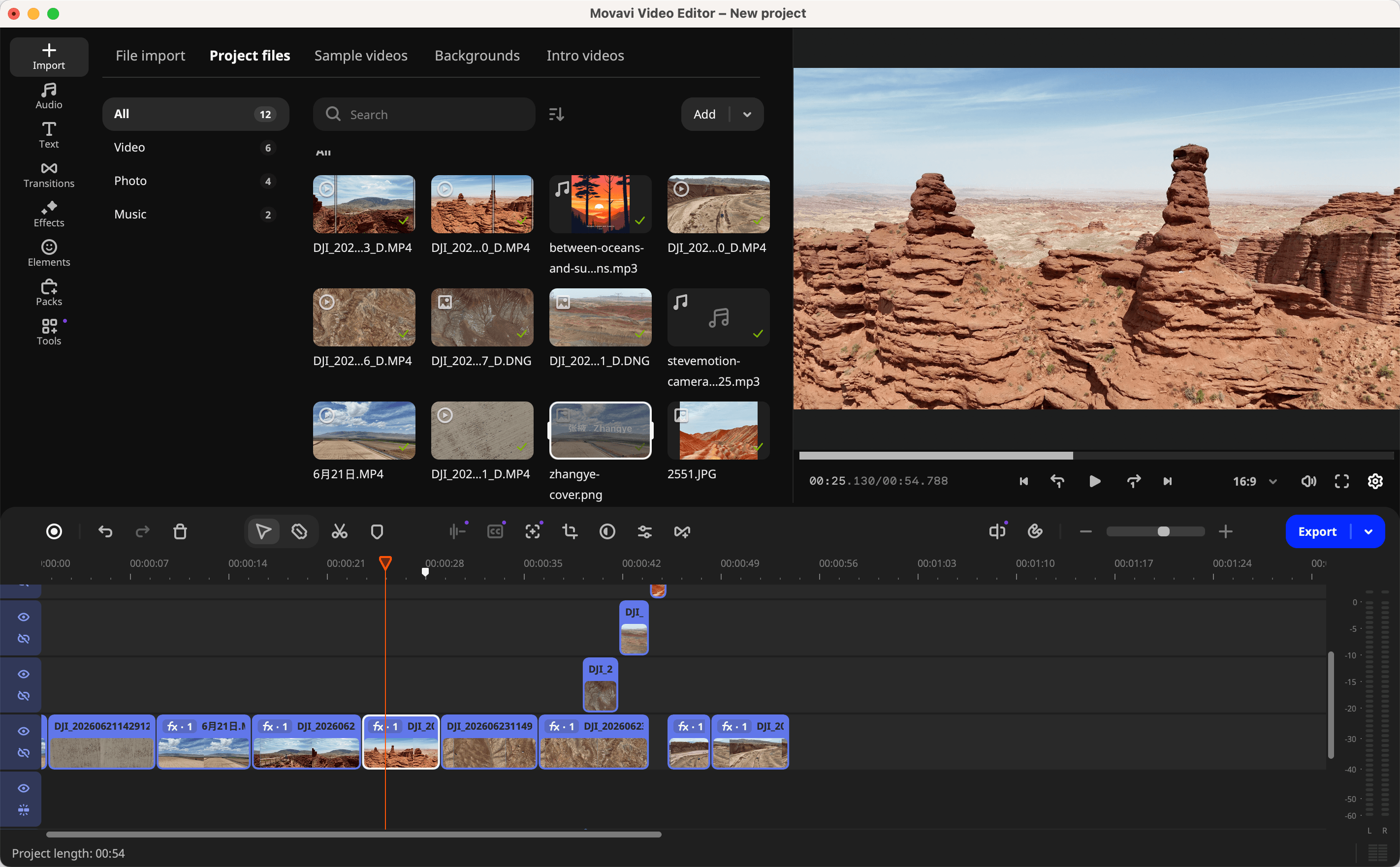
If you're new to video editing, the built-in guide helps you quickly understand where everything is.
If you've used CapCut before, the layout will also feel familiar.
Helpful Beginner Guides
The built-in guides make Movavi easier for beginners.
I tested several of its main features. For example, when you import a video for the first time, Movavi shows helpful pop-up tips explaining what to do next.
One feature I especially liked is Quick Fragment Selection.
I haven't seen this exact workflow in many other apps.
You can preview a video in the media panel, quickly select the part you want, and drag that part directly into the timeline.
It saves time.
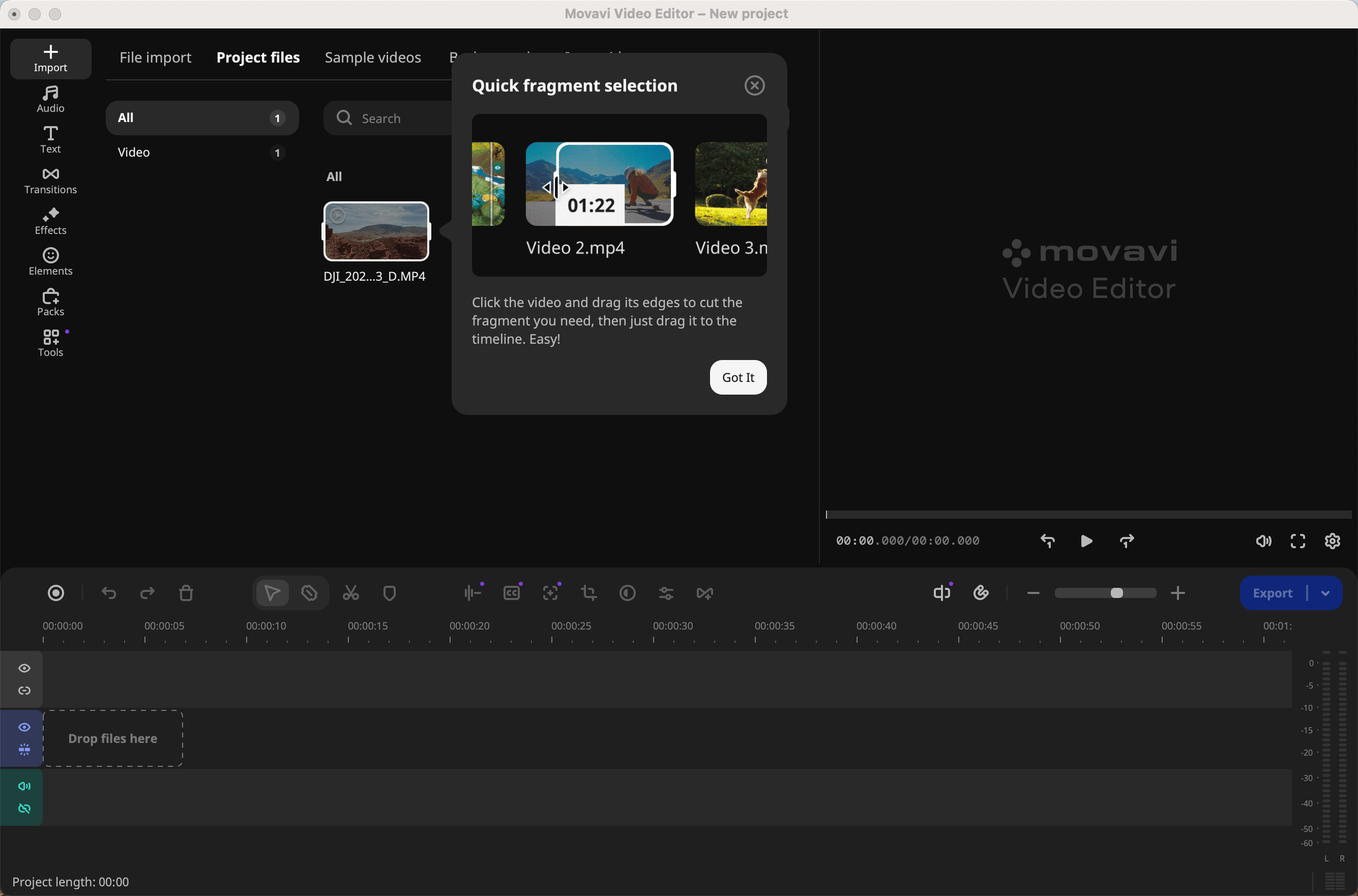
Movavi also includes several AI tools that reduce manual work, such as:
- Automatic subtitles
- Noise removal
- Silence removal
These features help you complete common editing tasks faster.
Plenty of Templates and Media
Movavi includes a wide range of built-in resources.
You get audio, effects, templates, and many other tools you may need while editing.
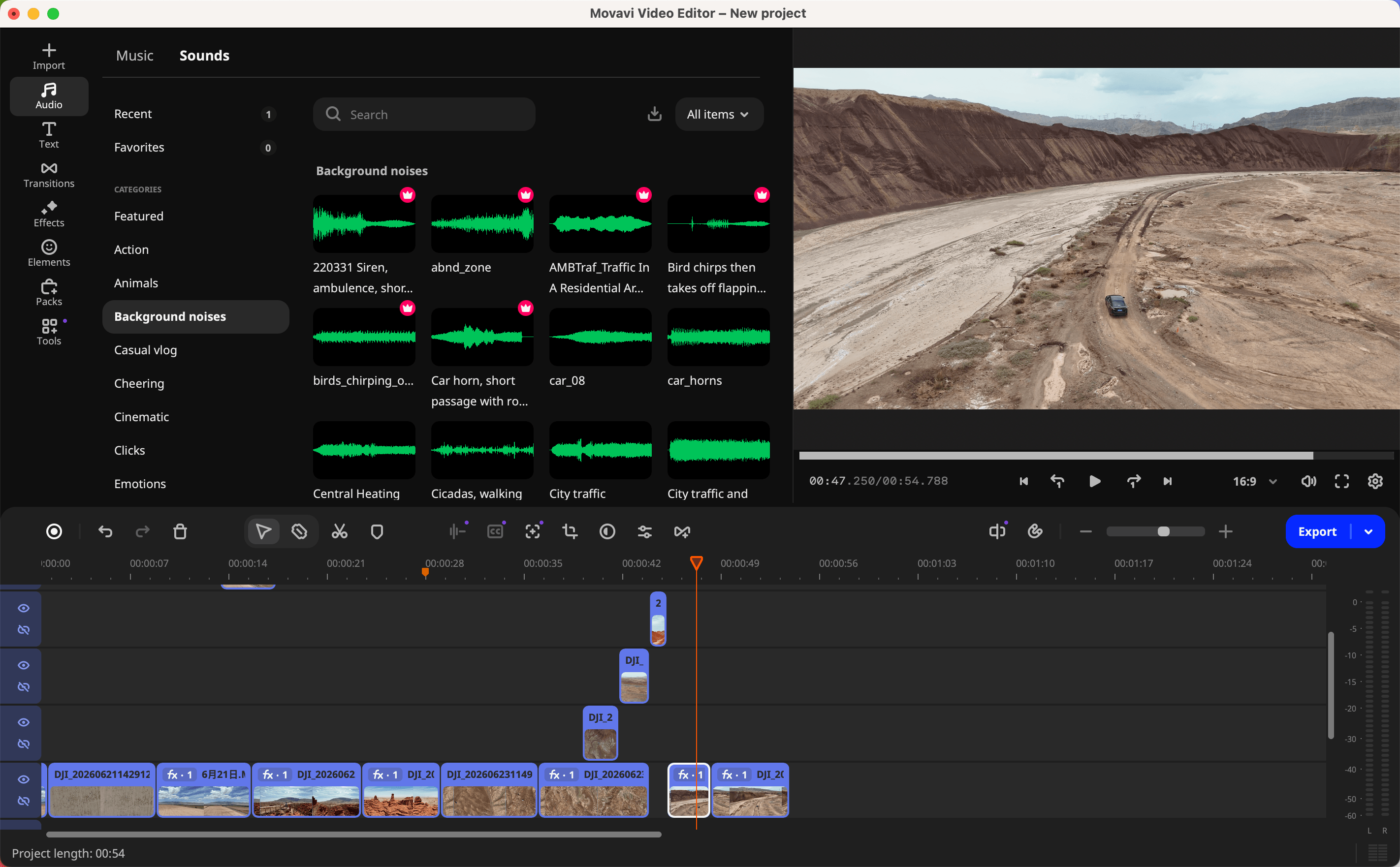
For example, when I was editing road trip and drone footage, I could find suitable background music in the Audio section, as well as camera shutter sound effects.
Good use of local disk space
The editing and export process was also smooth.
When I use CapCut, it often asks for at least 10 GB of free storage. Sometimes I even get a low disk space warning during export.
I didn't have the same problem with Movavi.
What I Think Could Be Improved
1. Faster Timeline Trimming
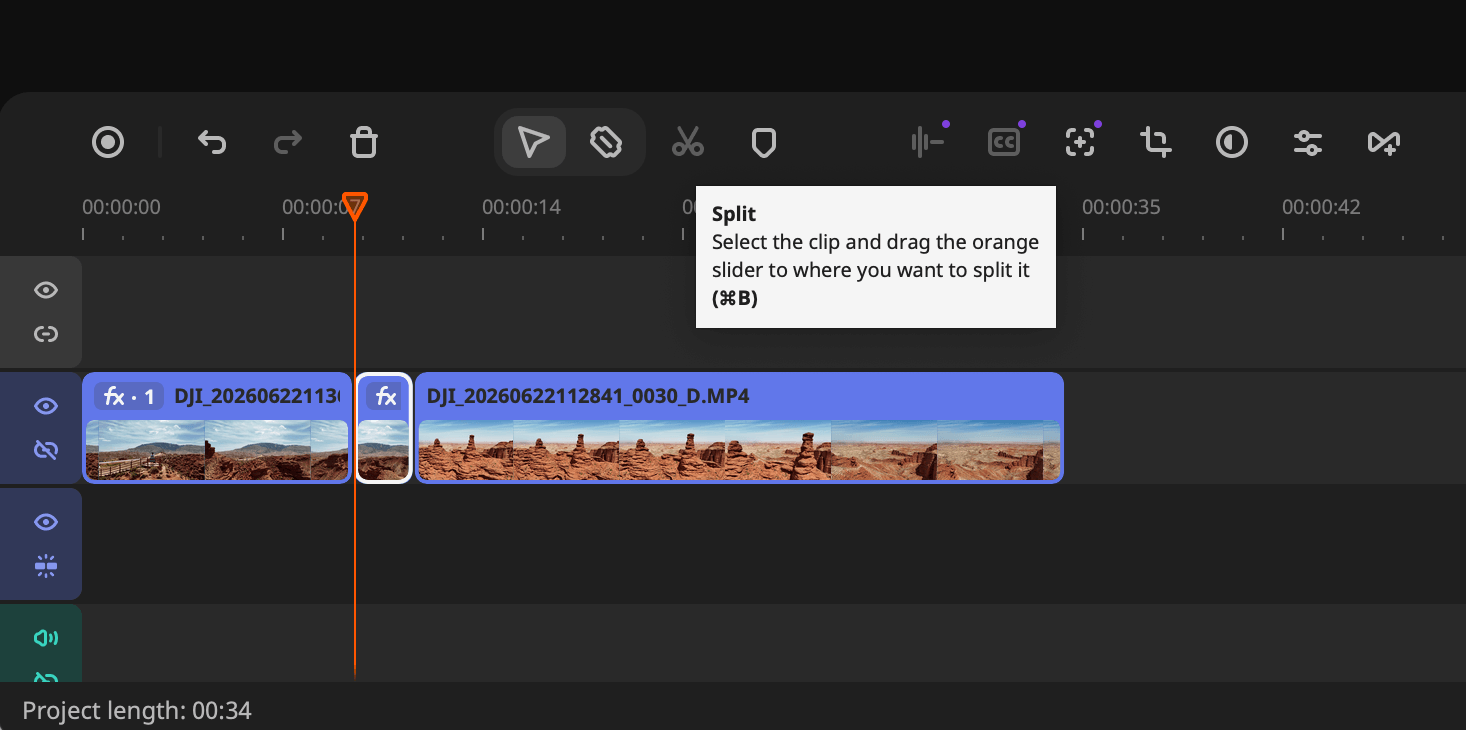
I'd like to see more timeline shortcuts, such as split to end or trimming everything before or after the playhead.
This would save the extra step of manually deleting unwanted clips.
2. Automatic Timeline Alignment
When you delete a clip from the middle of the timeline, Movavi leaves an empty space.
I'd prefer the remaining clips to automatically move left and connect to the previous clip.
This would make editing faster.
3. Better Music Search
I found that Movavi's media search seems to rely heavily on exact keyword matching.
Semantic search would make it much more useful.
For example, I had a lot of drone footage. When I searched for keywords related to "drone," I couldn't easily find suitable music.
It would be better if users could search by intent, such as:
background music for drone footage
The system could then understand the meaning instead of only matching keywords.
4. The Watermark Could Be Less Intrusive
If your project uses premium effects, the free version can only export the video with a watermark.
The problem is that the watermark takes up a fair amount of screen space.
It appears near the center of the video. In practice, something you'll want to plan around before exporting.
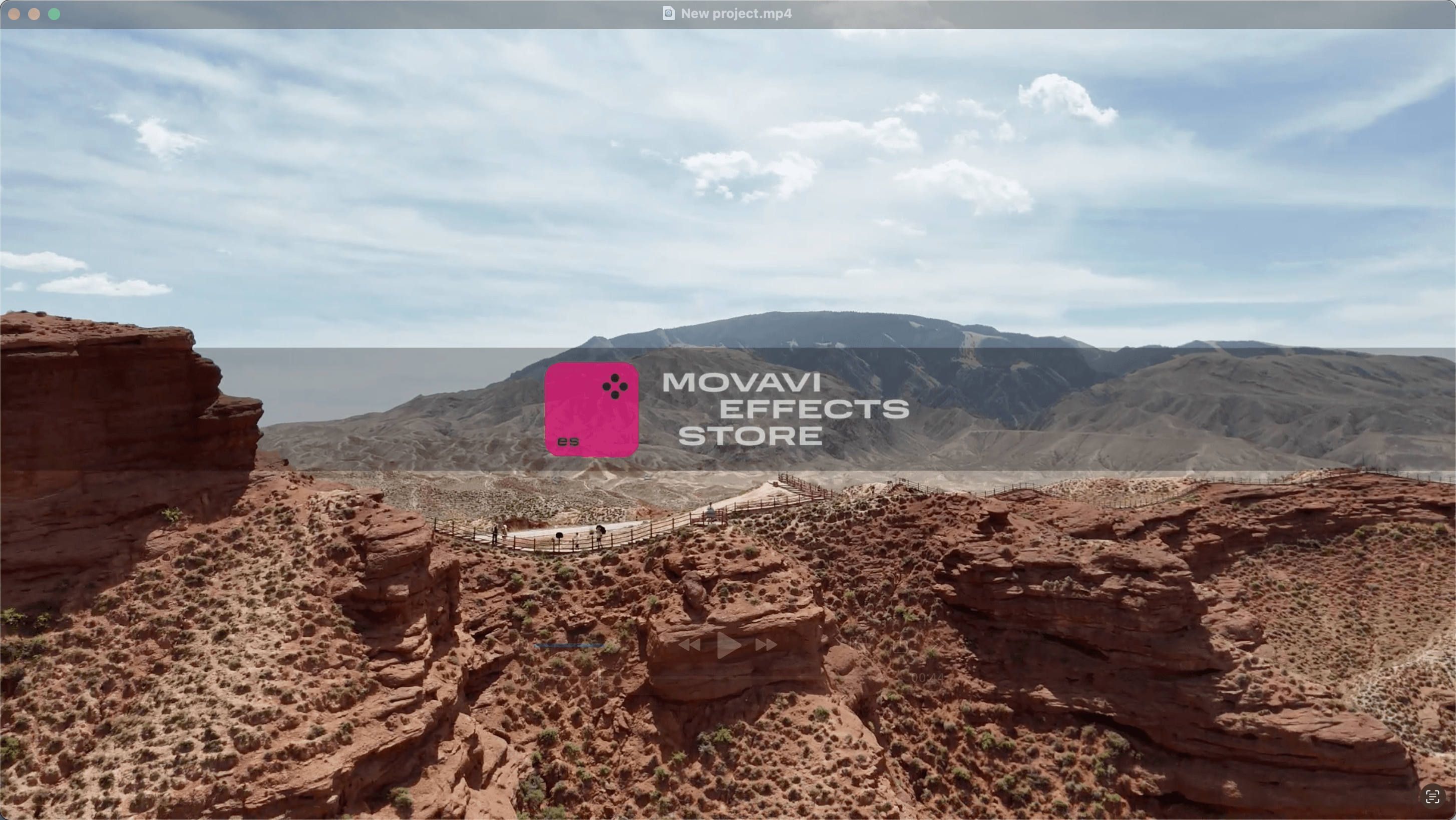
This is one area that could feel smoother for new users.
Movavi could show users exactly what the watermark will look like before export.
If someone still wants to use the free version, Movavi could also suggest removing premium effects instead.
5. More AI Generation and Agent Integration
This is where I see the most potential for future updates.
During my test, I ran into several situations where I ended up pairing it with other AI tools for this part.
One example was AI image editing.
At the beginning of my road trip video, I wanted to create a text behind image effect. I wanted part of the text to appear behind a mountain.
this particular effect wasn't something I found a direct way to do inside Movavi.
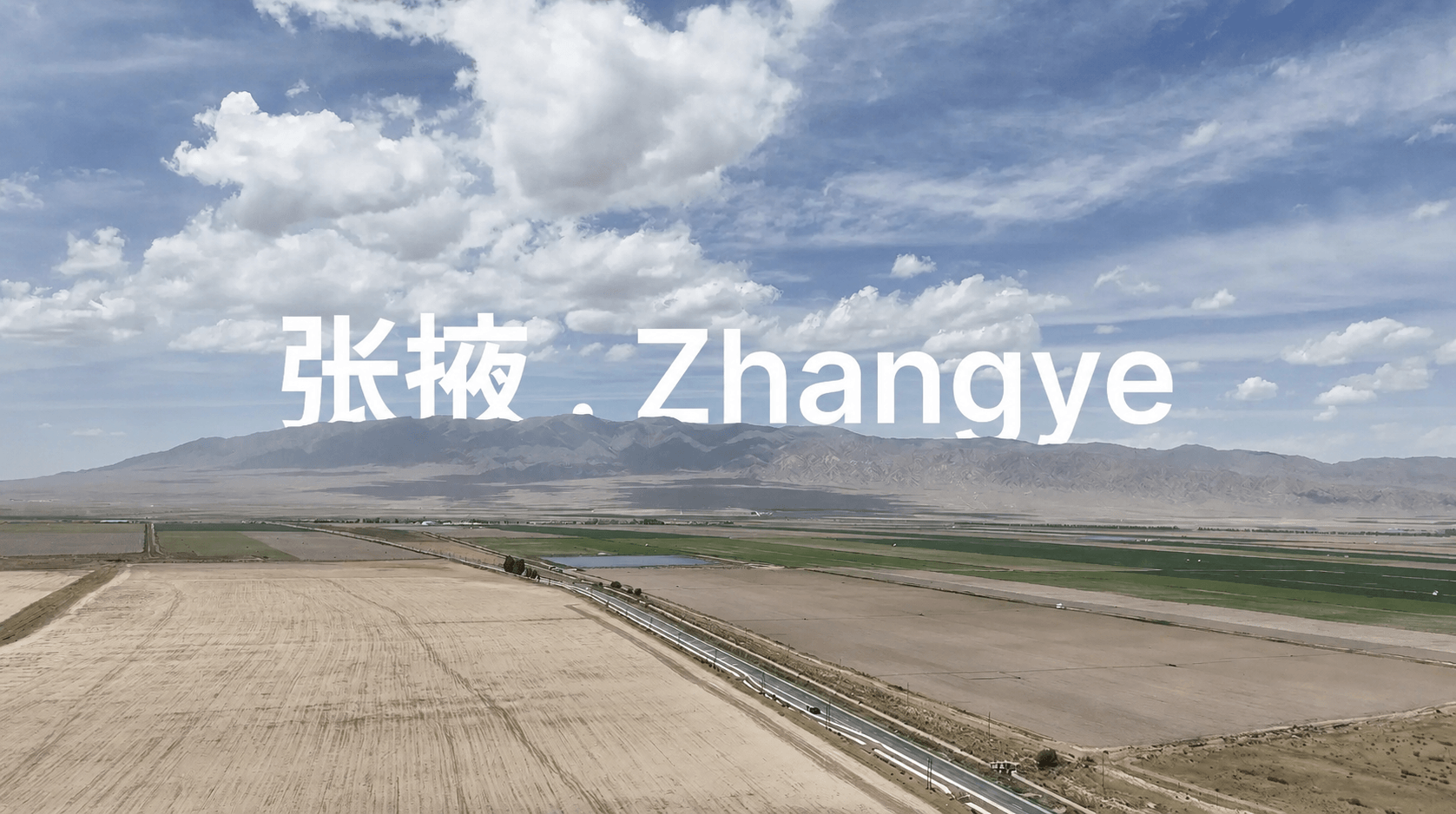
This also made me think:
What if I could use Movavi directly inside ChatGPT?
Another example is music and sound generation.
In previous video projects, I've used AI-generated sound effects. I've also called APIs myself to generate short sound effects for TikTok videos.
These kinds of AI generation tools could become a useful part of Movavi in the future.
Movavi vs CapCut vs ChatCut
I'll compare three video editing tools I've used: Movavi, CapCut, and ChatCut.
I'll focus on three areas:
- Product positioning
- Pricing
- AI capabilities
Positioning
Movavi and CapCut may both look like "video editing software," but their core ideas are different.
-
Movavi feels like a more advanced version of iMovie. It gives everyday users more powerful editing features than iMovie, while staying much easier to use than Premiere. Its main idea is professional features with simpler controls. It also offers more than basic video editing.
-
CapCut is more than a video editor. It's a combination of templates, media resources, and AI content generation. Its goal is to help users create TikTok and Reels content as quickly as possible.
-
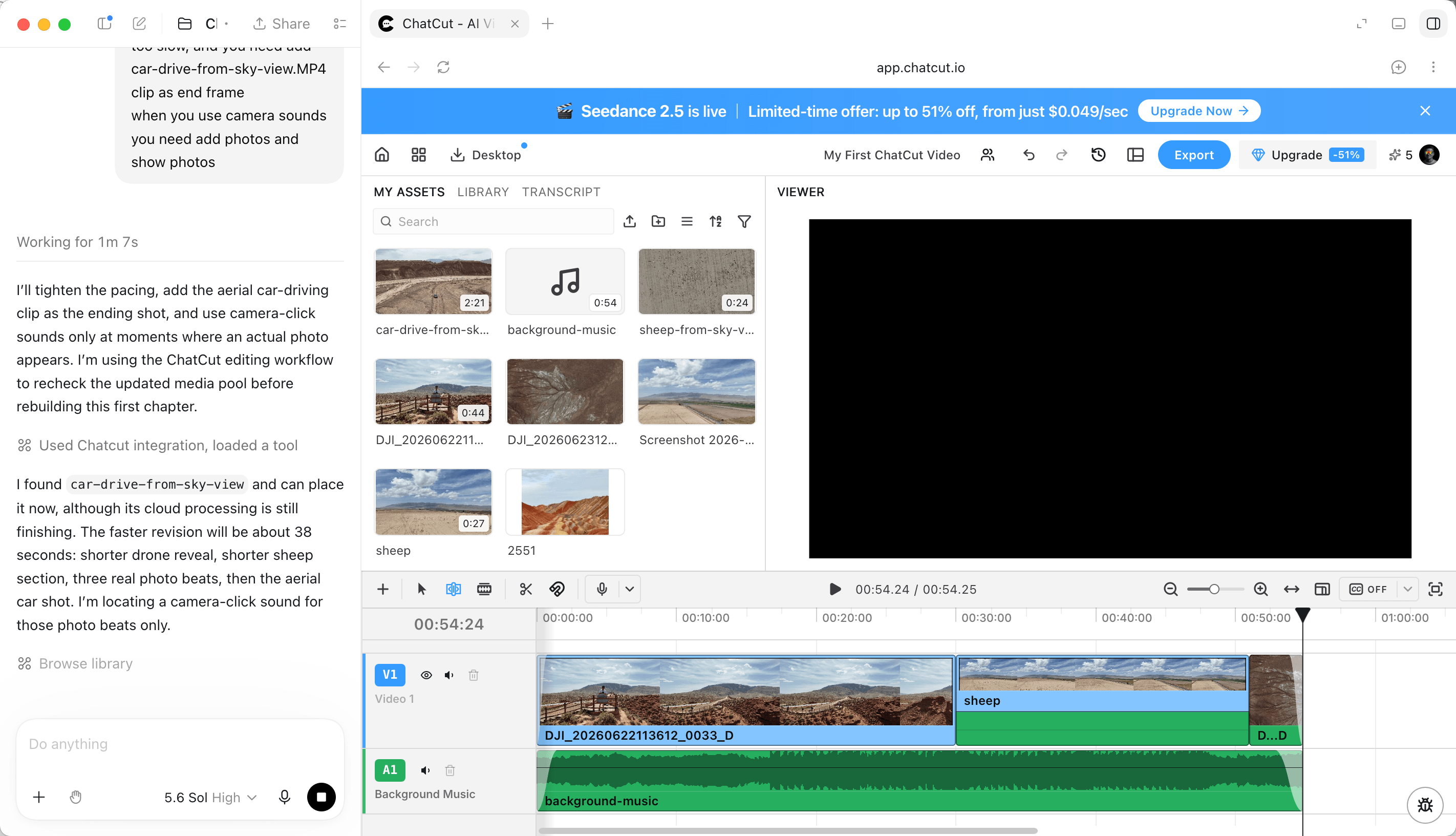
ChatCut tries to replace more of the manual editing process itself. It combines templates, AI-generated media, and Agent-based editing. You can complete editing tasks through Agents such as Codex and ChatGPT.
Pricing
The pricing models also show how software pricing is changing.
- Movavi: Subscription or Lifetime one-time purchase
- CapCut: Subscription + light Credit usage
- ChatCut: Credit-based pricing, starting at $25/month for 100 credits and going up to $160/month for 800 credits
ChatCut's pricing is closely tied to how much AI generation you use.
AI Capabilities
AI plays a slightly different role in each of these tools.
- Movavi uses efficiency-focused AI, designed to speed up traditional editing steps, mainly built to speed up traditional editing tasks — like AI auto subtitles or cleaning up audio working with the footage you already have.
- CapCut uses generative AI. It can generate videos, images, and audio from prompts. It also integrates ByteDance's Seedance models.
- ChatCut uses agentic AI. It can help with automatic layouts, AI effects, and AI editing. The goal is to let AI perform more of the editing process for you.
Final Thoughts
Video editing tools are moving from manual editing, to template-assisted editing, and now toward AI-powered editing.
Movavi, CapCut, and ChatCut are all moving in this direction, but in different ways.
They are trying to solve the same basic problem:
How can we turn our ideas into videos more easily?
There isn't one tool that is always better than the others.
The right choice depends on the type of content you create, your editing habits, and how much you trust AI.
It also depends on how much creative control you're willing to give AI, especially when it comes to decisions like visual style and editing taste.
No matter which tool you choose, the goal stays the same:
Create a high-quality video that expresses your idea clearly.
Tools should serve your ideas, not the other way around.
I'll continue sharing real reviews of the software and tools I use in my daily work.