Connect TwitterShots to your AI
Choose your client below. Each guide includes setup, authorization, and a first tool call.
Authentication & requirements
The hosted TwitterShots MCP server uses OAuth over Streamable HTTP. There is nothing to install for a remote connection.
- Create a TwitterShots account and set up an active API key at https://twittershots.com/settings/keys. Screenshot generation requires available quota.
- Connect your client to the hosted URL and sign in with the same TwitterShots account. You do not need to paste your API key into the remote client.
- Authorize read:usage to check quota and create:screenshot to generate images. Each screenshot uses your account’s screenshot quota.
ChatGPT
Add TwitterShots as a custom MCP plugin and use it directly in a conversation. Availability depends on your account and workspace permissions.
- Open Plugins, select Add, then Add custom MCP server. If your interface uses Apps or Connectors, enable developer mode in its advanced settings and open the custom MCP connection form.
- Enter TwitterShots as the name, paste the server URL below, and choose OAuth. Create and install the plugin.
- Sign in with your TwitterShots account and approve access. In a new chat, type @ and select TwitterShots, then paste the example prompt.
https://mcp.twittershots.com/mcpClaude
Use the hosted server through a custom connector in Claude web or Desktop.
- Open Settings → Connectors → Add custom connector.
- Name it TwitterShots and enter the server URL below. Add the connector and complete the TwitterShots OAuth sign-in.
- Enable TwitterShots in the conversation’s tools menu. Ask Claude to check your quota, then generate a screenshot from a public post URL.
https://mcp.twittershots.com/mcpGrok
Sign in to TwitterShots, then add a custom connector in Grok. Once connected, Grok can check your screenshot quota and create PNG screenshots of public X posts from your chats.
- Open grok.com/connectors.
- Click New Connector, select Custom, and name it TwitterShots.
- Paste the MCP server URL below.
- Complete OAuth sign-in with your TwitterShots account, then ask Grok to check your quota or generate a screenshot.
https://mcp.twittershots.com/mcpGrok Bot
Paste this prompt into Grok Bot to get started with TwitterShots MCP.
- Send the prompt below to Grok Bot.
- Follow Grok Bot’s instructions to add the TwitterShots connector and sign in to authorize access.
read https://twittershots.com/mcp and setup twittershots mcpCursor
Give Cursor Agent access to tweet screenshots with a project or global MCP configuration.
- Add the configuration below to .cursor/mcp.json in your project, or ~/.cursor/mcp.json for all projects.
- Open Cursor’s MCP settings, enable TwitterShots, and complete OAuth when prompted.
- In Agent chat, ask Cursor to use TwitterShots to create a screenshot and return its image URL.
{
  "mcpServers": {
    "twittershots": {
      "url": "https://mcp.twittershots.com/mcp"
    }
  }
}Claude Code
Register the remote HTTP server from your terminal.
- Run the command below in your terminal.
- Start Claude Code and run /mcp. Select TwitterShots and finish the browser sign-in.
- Ask Claude Code to check TwitterShots authorization and quota before generating your first image.
claude mcp add --transport http twittershots https://mcp.twittershots.com/mcpCodex
Connect the Codex CLI to the hosted server with OAuth.
- Run the commands below to add TwitterShots and sign in.
- Complete authorization in your browser, then open a new Codex session.
- Ask Codex to use TwitterShots to capture a public X post. The MCP configuration is stored in ~/.codex/config.toml.
codex mcp add twittershots --url https://mcp.twittershots.com/mcp
codex mcp login twittershotsVS Code / GitHub Copilot
Configure an HTTP MCP server in your workspace.
- Save the JSON below in .vscode/mcp.json.
- Start the server from VS Code’s MCP controls and authorize TwitterShots in your browser.
- Open Copilot Chat in Agent mode, enable the TwitterShots tools, and request a screenshot.
{
  "servers": {
    "twittershots": {
      "type": "http",
      "url": "https://mcp.twittershots.com/mcp"
    }
  }
}Available MCP tools
Once connected, your assistant can discover these tools from the server.
- authorization_status — check whether the connection has the required permissions.
- get_api_usage — check your remaining screenshot quota.
- generate_screenshot — create one PNG from a public X/Twitter post URL or numeric ID. Choose light or dark theme and auto, 1:1, 4:5, 5:4, 16:9, or 9:16 aspect ratio. Returns a publicly accessible image URL.
Create your first screenshot
After connecting, paste this prompt into your AI conversation. Replace the example URL with your public post.
- Confirm that authorization_status succeeds and get_api_usage reports available quota.
- Ask the assistant to call generate_screenshot and return the actual image URL from the tool response.
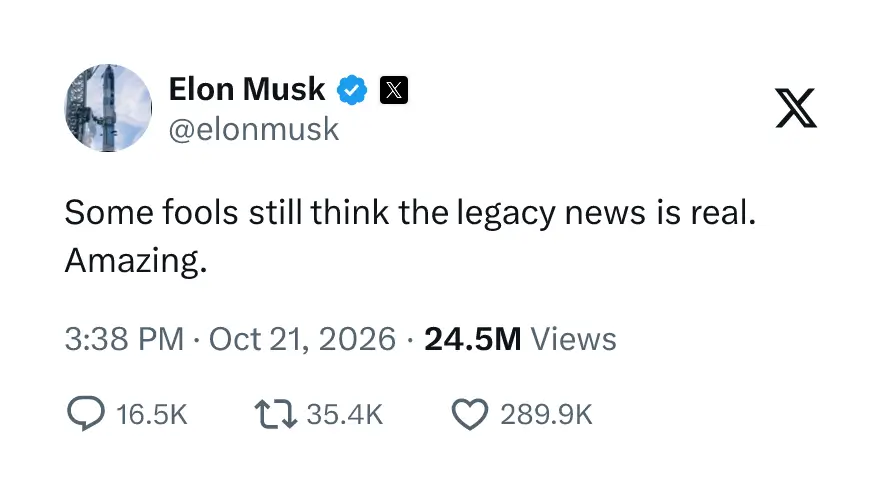
Use TwitterShots to check my remaining quota, then create a dark, square PNG screenshot of https://x.com/elonmusk/status/2108321181602353333 and return the image URL.If the connection fails
Check the connection before retrying screenshot generation.
- Sign-in or permission error: reconnect TwitterShots and complete OAuth again. Run authorization_status to verify access.
- No quota or no active key: open https://twittershots.com/settings/keys and check your account’s API key and usage.
- Tools missing: enable TwitterShots in the chat, refresh the MCP tool list, or restart the client after changing its configuration.
- Screenshot fails: use a public X/Twitter post URL or numeric ID. Private, deleted, or unavailable posts cannot be captured.
- Client cannot connect: confirm the URL ends in /mcp and the remote client supports Streamable HTTP and OAuth.