Twitter Screenshot MCP
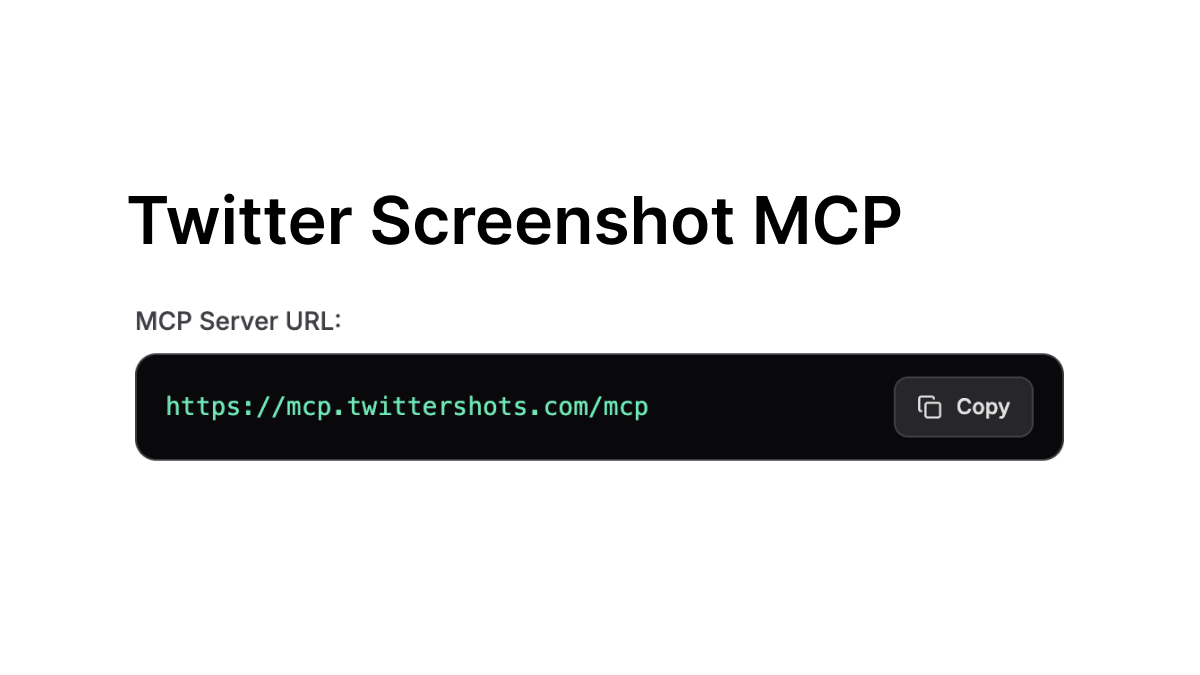
TwitterShots MCP connects your AI assistant to a Twitter/X screenshot tool. Add the hosted MCP server, authorize your TwitterShots account, and send a public post URL to create a PNG image. This October 25, 2026 update brings connection guides for ChatGPT, Claude, Grok, and Grok Bot, plus a Markdown setup guide you can give to your assistant.
What’s new: tweet screenshots inside your AI chat
You can now ask your assistant to capture a public X post, choose a light or dark theme, and return the generated image URL. The hosted TwitterShots MCP server handles screenshot generation, so you can keep working in the conversation where you write your newsletter, prepare a social post, or collect sources.
The connection exposes three tools:
| Tool | What it does |
|---|---|
authorization_status | Checks whether your connection has the required permissions. |
get_api_usage | Reports your remaining screenshot quota. |
generate_screenshot | Creates one PNG from a public Twitter/X post URL or numeric ID and returns an image URL. |
Screenshot generation supports light and dark themes, with auto, 1:1, 4:5, 5:4, 16:9, and 9:16 aspect ratios. Each generated screenshot uses your account’s quota. The returned image URL is publicly accessible, so use it for content you intend to share.
Before connecting TwitterShots MCP
Sign in to TwitterShots and check that your account has an active API key and available screenshot quota in API settings. The remote connection uses OAuth to find the key associated with your account; you do not paste that key into your AI conversation.
Use these connection details in your assistant:
| Setting | Value |
|---|---|
| Name | TwitterShots |
| MCP server URL | https://mcp.twittershots.com/mcp |
| Transport | Streamable HTTP |
| Authentication | OAuth |
| Permissions | read:usage and create:screenshot |
The server is hosted. You can connect a compatible AI client without installing a local server. For the complete setup reference and other clients, visit TwitterShots MCP.
How to screenshot X posts in ChatGPT
Add TwitterShots through ChatGPT’s custom MCP connection flow, then select it in your conversation.
- Open Plugins, choose Add, and select Add custom MCP server. In interfaces that use Apps or Connectors, find the custom MCP connection form in developer settings.
- Name the connection TwitterShots, enter
https://mcp.twittershots.com/mcp, and select OAuth. - Create and install the plugin, then complete the TwitterShots sign-in when prompted.
- In a new chat, type
@, choose TwitterShots, and send this request:
@twittershots capture this https://x.com/elonmusk/status/2112931457786081428
You can follow up with “Use a dark theme, make it square, and return the image URL.” Custom MCP access depends on your ChatGPT account and workspace permissions. See OpenAI’s custom MCP server documentation for the current connection flow.
How to connect TwitterShots MCP to Claude
Use a remote custom connector in Claude to make the screenshot tools available in chat.
- Open Settings → Connectors → Add custom connector.
- Enter TwitterShots as the name and
https://mcp.twittershots.com/mcpas the URL. - Add the connector and complete the TwitterShots authorization in your browser.
- Enable TwitterShots in the conversation’s tools menu, then try:
Use TwitterShots to check my remaining quota, then capture
https://x.com/elonmusk/status/2112931457786081428
as a dark 4:5 PNG and return the image URL.
Claude can call the quota tool before creating the image. For connector management, consult Claude’s remote MCP connector guide.
How to add a Twitter screenshot connector in Grok
Grok supports custom MCP connectors through its Connectors page. Connect TwitterShots there to generate screenshots from your Grok conversations.
- Open grok.com/connectors.
- Click New Connector, select Custom, and name it TwitterShots.
- Paste
https://mcp.twittershots.com/mcpas the MCP server URL. - Complete OAuth sign-in with your TwitterShots account.
- Return to your chat and ask:
Use TwitterShots to create a light 16:9 screenshot of
https://x.com/elonmusk/status/2112931457786081428
and return the generated image URL.
After connection, Grok can discover the screenshot and usage tools. Business and Enterprise workspaces may require an administrator to provision the connector. See the Grok connector documentation.
How to set up TwitterShots with Grok Bot
Give Grok Bot the setup page and follow its guidance to add the connector and complete authorization. Paste this prompt into the bot:
read https://twittershots.com/mcp and setup twittershots mcp
Follow Grok Bot’s instructions to add TwitterShots and finish sign-in in your browser when prompted. Once the connection is ready, ask it to capture your post:
Use TwitterShots to capture
https://x.com/elonmusk/status/2112931457786081428
as a square screenshot and return the image URL.
Grok Bot’s connected apps guide explains the Connect apps entry point and browser authorization. If your host does not offer the required connector, use one of the compatible clients in the MCP setup guide.
Check that your screenshot connection works
Start with “Use TwitterShots to check my connection permissions and remaining screenshot quota.” A working connection lets the assistant call authorization_status and get_api_usage before requesting an image.
Then ask for a screenshot of a public post. The assistant should return the image URL from generate_screenshot. If it only describes an image, ask it to call the TwitterShots tool and return the actual result.
If authorization fails, reconnect the account. If quota is unavailable, check your API key and usage. A private, deleted, or unavailable X post cannot be captured.
Twitter Screenshot MCP FAQ
What is TwitterShots MCP?
TwitterShots MCP is a hosted Model Context Protocol server that lets compatible AI assistants create PNG screenshots of public Twitter/X posts, check connection permissions, and report remaining screenshot quota.
Can ChatGPT create a tweet screenshot from a link?
Yes, when TwitterShots is connected and enabled in the conversation. Select the TwitterShots plugin, provide a public post URL, and ask for a screenshot. Your account needs available screenshot quota.
Do I need to paste my TwitterShots API key into Claude or Grok?
No. The hosted server uses OAuth sign-in. Your TwitterShots account still needs an active API key and screenshot quota, but the remote client does not need you to paste the key into chat.
Can I choose the theme and image size?
You can request light or dark theme and an aspect ratio such as square 1:1, portrait 4:5, or landscape 16:9. These options control the screenshot layout; they do not promise a specific pixel resolution.
Where can I get the setup guide as Markdown?
Open the Markdown MCP setup guide, or use Copy page as Markdown for AI on the TwitterShots MCP page. Give that guide to your assistant when configuring a connection.