Choose Replies for Thread to PDF Export
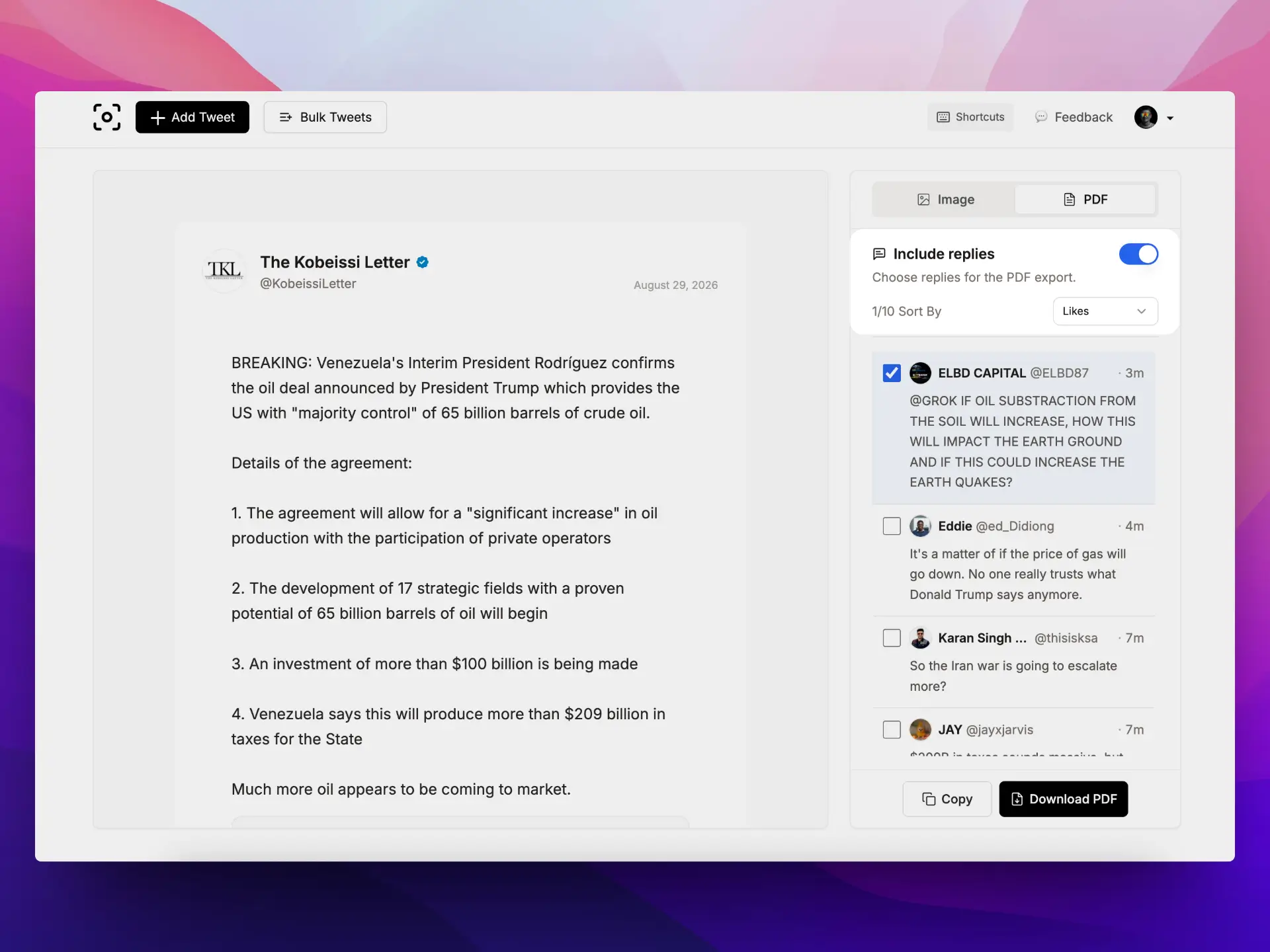
A thread to PDF can now preserve more than the original author’s posts. Turn on Include replies, choose the responses that add useful context, and TwitterShots will place them in the live preview and final PDF. The same selection is also included when you copy the conversation as Markdown.
Preserve the Conversation, Not Just the Original Thread
A post often makes more sense with the conversation below it. A reply may add a source, answer the original question, correct an important detail, or show how readers reacted. Saving only the main post can remove that context.
The new reply picker lets you create a focused record of the conversation. Instead of exporting every response, you decide which replies belong in the document. This keeps the PDF useful for research, reporting, customer support, community notes, or a personal archive without filling it with unrelated comments.
What’s New
The PDF workspace now includes a compact reply-selection flow:
- Turn Include replies on or off without leaving the PDF view.
- Sort top-level replies by Relevant, Recent, or Likes.
- See the selected count beside the sorting control as you make changes.
- Review each reply with its avatar, display name, handle, timestamp, and full text.
- Select only the replies you want to preserve.
- Load more responses from the bottom of the reply list.
- Preview the selected conversation before downloading.
- Copy the thread and selected replies as Markdown or download them together as a PDF.
How to Include Replies in a Thread to PDF Export
- Open the Twitter Thread to PDF tool and paste the URL of a public Twitter or X post.
- Open the PDF tab after the post or thread loads.
- Turn on Include replies to load the available top-level responses.
- Choose Relevant, Recent, or Likes from Sort By to find the replies you need.
- Select or clear individual replies. The count updates immediately, and selected replies appear below the original content in the preview.
- Use Load more if you need to review additional responses.
- Choose Copy for Markdown or Download PDF for a portable document.
The preview is the easiest way to check the final reading order and make sure the conversation contains only the context you intended to save.
What the Export Includes
The original post or author thread remains the foundation of the export. When Include replies is enabled, TwitterShots adds only the replies you selected.
The picker and preview show the author’s avatar, display name, handle, relative time, and complete reply text. The downloaded PDF preserves the avatar, author name, handle, and full response. Long reply content is not shortened with an ellipsis in the preview, so you can review everything before downloading.
The final reply does not receive an extra divider, keeping the end of the PDF clean. Turning Include replies off removes the reply section from the preview and export but does not change anything on the original X conversation.
Useful Thread to PDF Scenarios
This update is especially useful when the responses are part of the story:
- Research and reporting: preserve a claim together with expert responses, corrections, or source links.
- Customer support: save a public question and the most helpful answers as one document.
- Community discussions: capture representative viewpoints without exporting every comment.
- Product feedback: archive a launch post with selected user reactions and requests.
- Personal knowledge: keep a useful thread and the replies that explain or extend it.
Selective export makes the result easier to read and easier to share. The PDF becomes a curated conversation rather than an unfiltered comment dump.
Copy Markdown or Download PDF
Use Copy when you want editable Markdown for notes, a document editor, or a knowledge base. The copied content contains the original post or thread followed by the selected reply authors and reply content.
Use Download PDF when you need a stable file for reading, sharing, printing, or archiving. Both actions follow the same reply selection, so you do not have to choose the responses again.
Frequently Asked Questions
Can I include replies when converting a Twitter thread to PDF?
Yes. Turn on Include replies in the PDF panel, select the responses you want, and TwitterShots will place them after the original post or thread in the preview and downloaded PDF.
Can I choose which replies appear in the PDF?
Yes. Each loaded reply has its own selection control, so you can include useful context and leave out unrelated responses before exporting.
Can I sort or load more replies before exporting?
Yes. Sort replies by Relevant, Recent, or Likes, then use Load more at the bottom of the list to review additional responses.
Are selected replies included when I copy the thread?
Yes. Copy includes the original post or thread plus the selected reply authors and reply content in Markdown format.
Does turning off Include replies change the original Twitter thread?
No. The setting only changes your TwitterShots preview and export. It never edits the original post, thread, or replies on X.
What reply details are shown in a thread to PDF export?
The picker and preview show the author avatar, display name, handle, time, and full reply text. The downloaded PDF preserves the author avatar, name, handle, and full reply text.