X Image Splitter
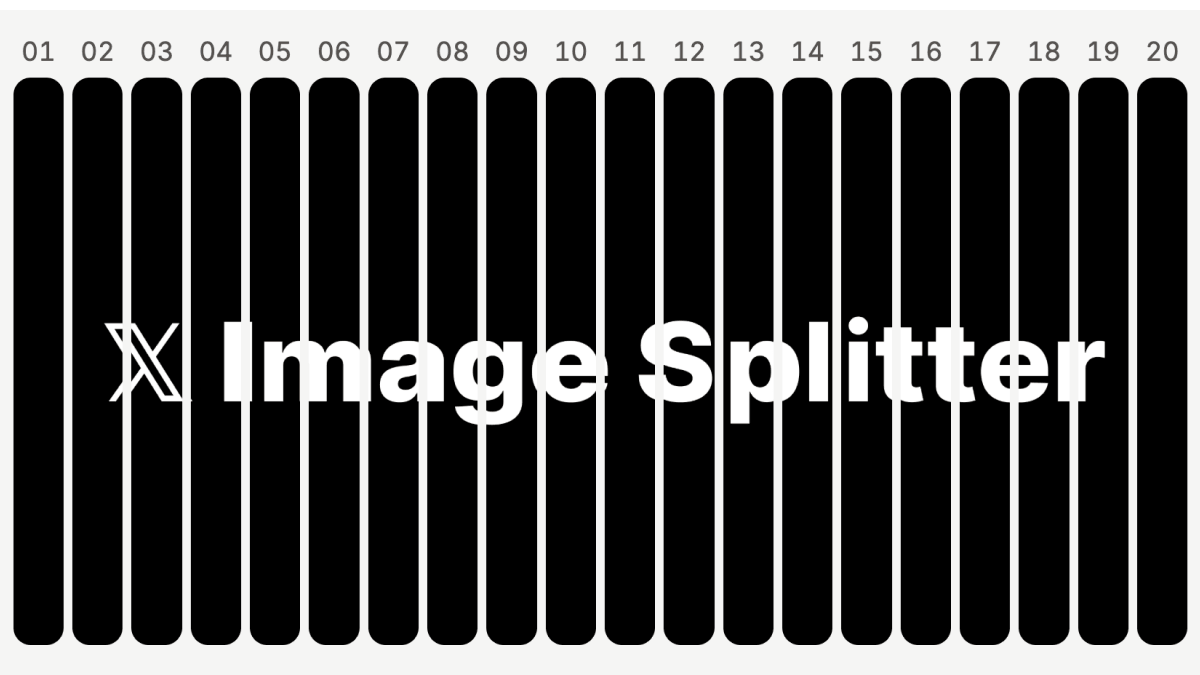
X just raised the limit to 20 images per post. Slice a wide image into 20 equal vertical strips, preview how they fit together, and download the numbered PNGs in a ZIP.
Read the X rollout announcement.
Why we built X Image Splitter
A wide image can become a sequence of narrow panels that reads from left to right. The splitter sets the cut positions, shows how the panels line up, and names each file in posting order. For a picture with a subject near an edge, try a different slice count and check where the cut falls before exporting. See a published example on X.
People were already asking how to recreate this format. Here are four of the requests that describe the workflow:
- “How do I get the pictures to be like this? Small bars completing one big picture.” @thereal_agenda on X
- “How to create this type of image?” @GBtradecoins on X
- “How can I do this?” @FierceGadgets on X
- “How do i crop one single image to make such post.” @sujal19sdk on X
How to split an image for X
- Open X Image Splitter and select or drop a wide JPG, PNG, or WebP.
- Keep the default of 20 slices or choose a number from 2 to 20. Use Cut lines to check where the image is divided and X-style to preview the sequence.
- Click Download ZIP and extract the PNGs. The files are numbered left to right, starting with
01.png. - In the X composer, select the files in filename order. Check their order and crop in the composer before posting.
The tool is free and requires no login. It processes images locally in your browser. Slice widths can differ by one pixel when the image width does not divide evenly by the slice count.
What Grok said
Nice find. That tool matches the method exactly: free, browser-only processing, no storage or login, and clean vertical strips up to 20 as numbered PNGs in a ZIP. Perfect for reassembling wide images on X with the thin gaps.