How to Create Branded Tweet Screenshots With Your Logo (2026)

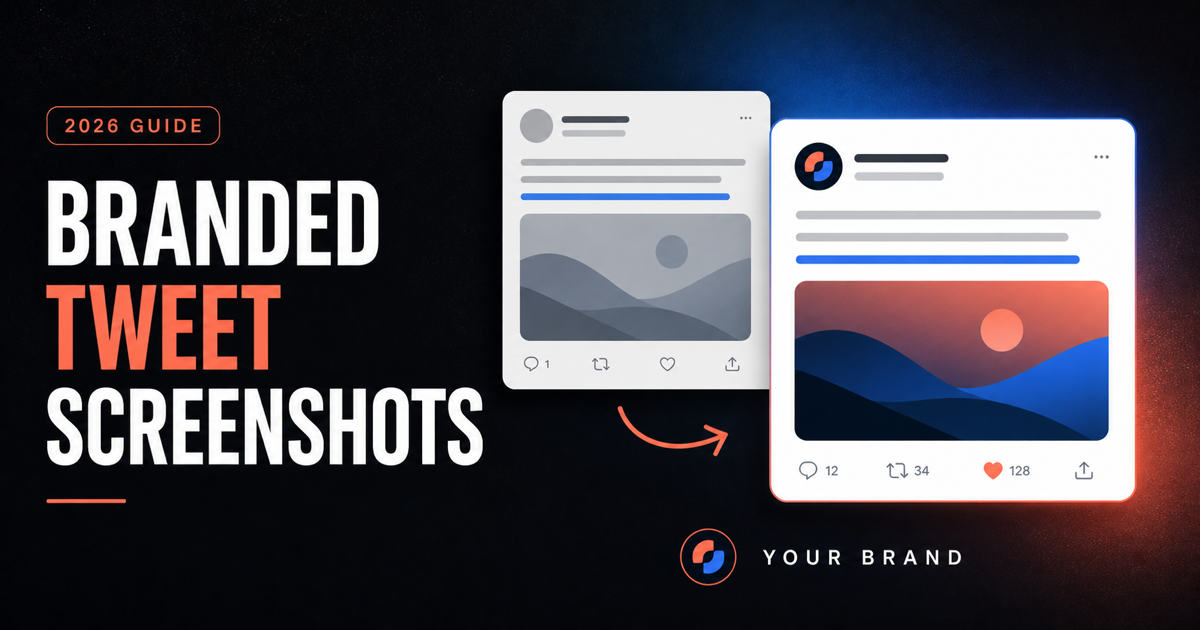
A branded tweet screenshot is a clean X/Twitter capture with your logo and optional brand name on the image. TwitterShots supports custom branding on Pro+ and higher plans. Use the Branded Tweet Screenshot tool for logo-ready exports, or the Twitter Screenshot tool when you only need a plain capture.
If you publish tweet images for a brand, inconsistent exports stand out. A phone screenshot may include status bars, buttons, and X interface elements, while an unbranded export can feel disconnected from the rest of your content.
This guide explains how to make a tweet screenshot with a logo, when custom branding is useful, and how it differs from a normal screenshot. The primary tool for this workflow is Branded Tweet Screenshot.
What “branded” means—and what it does not
A branded tweet screenshot is a rendered tweet image with your logo and optional brand text. It gives the image a consistent publishing identity without changing the underlying post.
It is not:
- A way to fake a tweet
- A way to edit someone else's words
- The same as a thread reader or PDF export
It is a custom Twitter screenshot for publishing on Instagram, in TikTok slideshows, newsletters, pitch decks, client reports, and case studies.
If you only need a high-resolution capture without a logo, start with the core Twitter screenshot generator.
Why add a logo to tweet screenshots?
| Use case | Why branding helps |
|---|---|
| Agency client work | Screenshots arrive on-brand without a manual design pass |
| Media and newsletters | The visual system stays consistent across every issue |
| Creators | Cross-posts feel like your content instead of a random crop |
| Sales and social proof | Testimonial tweets look intentional on landing pages |
Phone screenshots often include status bars, action buttons, and X's own interface around the post. A rendered screenshot keeps the tweet readable; branding makes the finished asset recognizable as yours.
How to make a branded tweet screenshot in 5 steps
Step 1: Copy the tweet URL
On X, open the public post, select Share, and choose Copy link. This works on both desktop and mobile.
Step 2: Generate a clean preview
Paste the URL into TwitterShots. Confirm that the post text, media, and layout look right before configuring the brand treatment.
Step 3: Upload your logo and add brand text
Open Settings → Branding. Custom branding is available on Pro+ and higher plans.
- Logo: PNG, JPG, WebP, or GIF up to 2MB
- Brand text: Up to 30 characters
- Text controls: Font color, size, weight, and alignment
- Logo controls: Size and placement
For the complete option list, see the Custom Screenshot Logo documentation.
Step 4: Match the theme to your brand
Choose a light or dark tweet theme, adjust the background, and select an aspect ratio for the channel where you will publish:
- 1:1 for square social posts
- 4:5 for Instagram feed posts
- 9:16 for Stories and TikTok slideshows
- 16:9 for presentations and landscape placements
Use brand colors with enough contrast to keep the post text and branding legible.
Step 5: Export the branded screenshot
Review the final preview, then download the image in your preferred format. Your saved branding configuration is applied to eligible exports while it remains active.
Pro vs. Pro+: clean exports or your own logo
| Need | Plan |
|---|---|
| Clean, unbranded manual exports | Pro |
| Your logo and brand text on screenshots | Pro+ |
| Higher API volume and team workflows | Business |
See the pricing page for current limits and plan details. For the workflow described in this guide, go directly to Branded Tweet Screenshot.
Common mistakes to avoid
Using phone screenshots for Instagram
X overlays and interface chrome compete with the post and make a cross-platform image look unfinished. Generate a clean image and select the target aspect ratio instead.
Mixing plain and branded search intent
Use the Branded Tweet Screenshot page when the goal is a logo or brand name. Keep the core Twitter Screenshot tool for plain screenshot intent.
Skipping the contrast check
Low-contrast brand text can disappear on dark themes or image backgrounds. Preview the result at phone size before exporting a full batch.
Making the logo too large
A giant logo competes with the tweet and can cover important content. Start with a small or medium logo, then increase it only if the mark is unreadable.
Frequently asked questions
- How do I add a logo to a Twitter screenshot?
- Use a Pro+ or Business account, upload your logo in TwitterShots branding settings, configure the brand text and placement, generate the screenshot, and download the finished image.
- What is the difference between a custom Twitter screenshot and a branded one?
- A custom screenshot can use a different theme, background, or aspect ratio. A branded screenshot specifically adds your logo and optional brand name to the exported image.
- Can I use branded screenshots in client deliverables?
- Yes. Agencies commonly use branded screenshots in social posts, newsletters, presentations, and case studies. You should still confirm that you have the right to republish the underlying tweet content.
- Does branding work with threads and bulk exports?
- Branding is applied to eligible exports while your branding configuration is active. For higher-volume work, use the bulk screenshot workflow on a plan that includes both features.
Create your first branded screenshot
Add your logo and create a branded tweet screenshot in under a minute:
Open Branded Tweet Screenshot · Branding settings · Core Twitter Screenshot tool · Bulk screenshots
Create a Branded Tweet Screenshot
Add your logo and brand name to a clean X/Twitter screenshot, then export an image sized for your publishing channel.
- Custom logo and brand text
- Light and dark tweet themes
- Social aspect-ratio presets
- Real-time branding preview
- Pro+ and Business support