How to Download Twitter Videos on iPhone & Android


To download a Twitter or X video on iPhone or Android, copy the link to the supported public post, paste it into TwitterShots Twitter MP4 Downloader, and open an available MP4 quality. On iPhone, save through Safari to Files; on Android, use the player or Chrome download control and check Files or Downloads.
- iPhone: use Safari, open the MP4 result, save it to Files when offered, and check Files → Browse → Downloads.
- Android: use Chrome, open the MP4 result, select the player or browser download control, and check Files → Downloads.
- Correct URL: paste the full x.com or twitter.com status link for a supported public post containing native video.
- Quality: choose from the MP4 variants available for the source post; the downloader does not upscale missing HD detail.
Before You Start
You need a current mobile browser and the URL of a supported public post that contains video. The link should look like this:
https://x.com/username/status/1234567890
Both x.com and twitter.com status URLs are accepted. A profile link, search page, Direct Message, or post that only links to a third-party video host is not the same input. Private, deleted, or restricted media cannot be unlocked by a downloader.
Use videos you own or have permission to save. Downloading an MP4 does not transfer copyright or permission to republish it.
The Three-Step Mobile Workflow
Step 1: Copy the Twitter Video Link
Open the post in the X app or your mobile browser. Tap the Share icon, then select Copy link to Post. X documents this option in its official post sharing guide.
Copy the post itself—not the creator’s profile URL. If the post contains several media items, the available results depend on which video variants TwitterShots can retrieve from that post.
Step 2: Get the MP4 in Your Mobile Browser
Open TwitterShots Twitter MP4 Downloader in Safari on iPhone or Chrome on Android. Paste the link, tap Get MP4, and sign in if prompted.
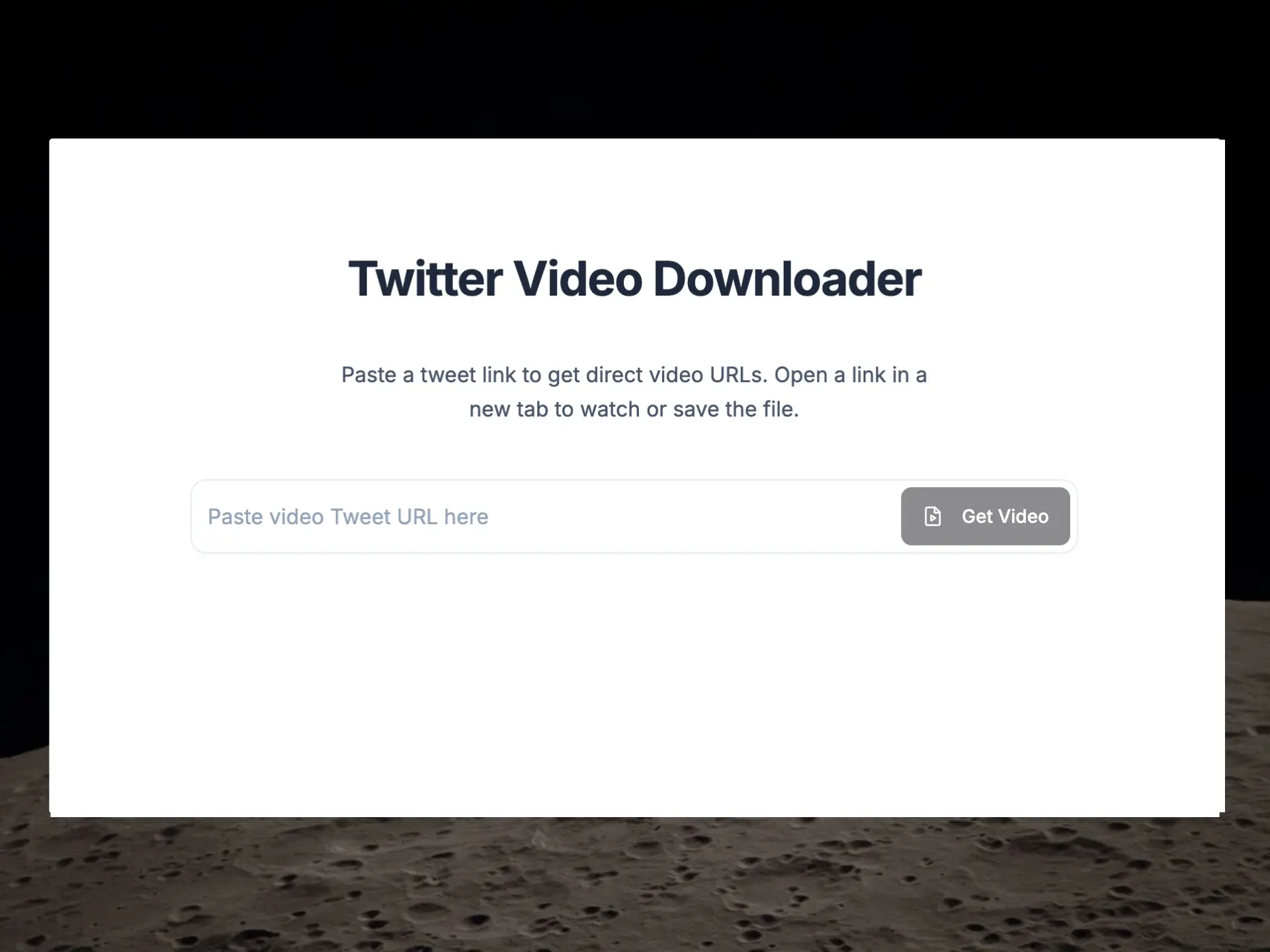
When results appear, choose the quality that fits your storage and viewing needs. Pick the highest available option for editing or a large display; a smaller file is often more practical for messaging or limited mobile data. HD and 1080p appear only when the source provides an accessible variant.
Step 3: Save the MP4 on iPhone or Android
Tap an available quality to open the MP4. A new browser tab with a video player is expected. From there, use the player’s download icon, the browser menu, or the system Share menu. The exact label changes by browser and operating-system version.
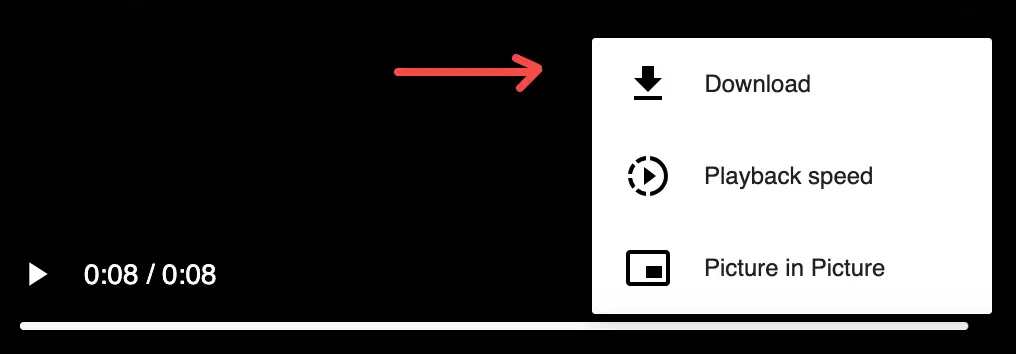
The next section gives the platform-specific final steps.
How to Download a Twitter Video on iPhone
Safari is the clearest starting point because downloaded files integrate with the Files app.
- In the X app or Safari, copy the public video post URL.
- Open TwitterShots Twitter MP4 Downloader in Safari.
- Paste the URL and tap Get MP4.
- Sign in if requested, then tap an available MP4 quality.
- In the video tab, use the player control or Share menu and choose a save action such as Save to Files when available.
- Open the Files app, tap Browse, and check Downloads.
Apple’s current iPhone and iPad download guide says internet downloads appear in the Downloads folder in Files. It also notes that Safari displays a Downloads button near the search field after a file is downloaded.
If you explicitly choose Save Video and iOS offers that action, look in Photos instead. If you choose Save to Files, the destination shown in the save sheet controls where the MP4 goes; it may be iCloud Drive, On My iPhone, or another folder you select.
Where Is the Downloaded Video on iPhone?
Check these locations in order:
- Safari’s Downloads button near the address or search field.
- Files → Browse → Downloads.
- The folder you selected in the Save to Files sheet.
- Photos, but only if you used a Save Video action.
The Files app is the reliable location for a downloaded MP4 file. Photos is a media library, so a file does not automatically appear there merely because it can play as video.
How to Download a Twitter Video on Android
Chrome normally saves downloaded files to the device’s default download location.
- In the X app or Chrome, copy the public video post URL.
- Open TwitterShots Twitter MP4 Downloader in Chrome.
- Paste the URL, tap Get MP4, and sign in if prompted.
- Tap an available MP4 quality to open the video.
- Use the video player download icon or Chrome menu to download the file.
- Open the Files app and check Downloads, or open Chrome → menu → Downloads.
Google’s official Chrome for Android download guide says downloaded files go to the default download location and can be found in the Files app. It also documents Chrome’s Downloads screen for recent transfers.
Android manufacturers sometimes rename the file manager to Files, My Files, or File Manager. The browser’s Downloads screen is the quickest fallback when the device app uses a different name.
Where Is the Downloaded Video on Android?
Check these locations in order:
- The download notification, if it is still visible.
- Chrome → menu → Downloads.
- Files or the phone manufacturer’s file manager → Downloads.
- The custom folder selected in Chrome settings, if you changed the default location.
iPhone vs Android: What Changes?
The TwitterShots retrieval flow is the same. Only the final save control and file location differ.
| Phone | Recommended browser | Typical final action | First place to find the MP4 |
|---|---|---|---|
| iPhone | Safari | Player or Share menu → Save to Files | Files → Browse → Downloads |
| Android | Chrome | Player download icon or Chrome download control | Files → Downloads or Chrome → Downloads |
If the MP4 opens and plays, retrieval has already succeeded. The remaining step is the browser-specific save action.
Common Mobile Browser Issues
Keep the mobile checks short and specific:
- The MP4 opens but does not save: use the player, Share, or browser menu instead of repeatedly tapping the quality link.
- The file seems missing: check the official Downloads location for your device before running the downloader again.
- No MP4 result appears: confirm the original public post still plays native video and copy its full status URL again.
- No HD option appears: choose the highest result shown; TwitterShots cannot create a source quality that is unavailable.
- A sign-in screen appears: complete sign-in, return to the downloader, and submit the same post URL again.
These checks cover the common mobile URL, retrieval, preview, quality, and save-location problems without sending you through a second troubleshooting article.
Related Twitter Video Guides
- Twitter MP4 Downloader — retrieve available MP4 variants from a supported public post.
- Download Twitter Videos in MP4 Quality — choose an available result and save the MP4 in three steps.
- How to Download a Twitter Video as MP4 — the full cross-device workflow and quality guide.
- Twitter Video Download — broader downloader entry point and responsible-use guidance.
Frequently asked questions
- How do I download a Twitter video on iPhone?
- Copy the link to a supported public Twitter/X video post, paste it into the TwitterShots Twitter MP4 downloader in Safari, sign in if prompted, and open an available MP4 quality. Use the player or Share menu to save the file, then check the Files app and its Downloads folder.
- How do I download a Twitter video on Android?
- Copy the public post link, paste it into TwitterShots in Chrome, select Get MP4, and open an available result. Use the video player download control or Chrome menu, then find the MP4 in the Files app or Chrome Downloads.
- Where are Twitter videos saved on iPhone?
- Files downloaded in Safari normally appear in the Downloads folder in the Files app. Open Files, select Browse, then check Downloads under iCloud Drive or the download location configured for Safari. A file saved explicitly to Photos appears in the Photos app instead.
- Where are Twitter videos saved on Android?
- Chrome saves files to the device’s default download location. Open the Files app and check Downloads, or open Chrome, select the menu, and choose Downloads to view recent files.
- Why does the MP4 open in a new tab on my phone?
- That is an expected preview step in the TwitterShots workflow. Use the video player download button, browser menu, or Share menu to save the MP4. The exact control varies by browser and operating-system version.
- Can I download a Twitter video in HD on mobile?
- Yes, when an HD variant is available for the source post and accessible to your account. TwitterShots lists the qualities it can retrieve, but it cannot create 720p or 1080p detail that the source does not provide.
Download a Twitter Video on Your Phone
Paste a supported public X or Twitter post URL, choose an available MP4 result, and save it from Safari or Chrome.
Open Mobile MP4 Downloader- iPhone and Android
- Available MP4 Qualities
- No App Installation
- No Added Watermark