Twitter Video Download Not Working? 8 Fixes (2026)


If a Twitter video download is not working, reopen the post and copy its full x.com/.../status/... URL. Confirm the post is public and contains native video, sign in to TwitterShots if prompted, then retry. If the result opens in a new tab, use the player or browser download control; that behavior is normal.
- Invalid link: copy the URL again from the original post; profile, search, Direct Message, and incomplete links do not identify a public video post.
- No video found: confirm the public post still plays a native video and is not text-only, photo-only, deleted, protected, or merely linking to an external player.
- New tab: this is expected—use the video player, browser menu, or device share menu to save the MP4.
- No HD option: a downloader cannot create 1080p when the source or current access does not provide it.
- Still failing: refresh your session, retry later, or test another current browser before submitting the URL again.
Diagnose the Problem First
Start with the symptom you can see. Changing several things at once makes it harder to identify the real cause.
| Symptom | Most likely cause | First action |
|---|---|---|
| “Only X/Twitter links are supported” | The URL is incomplete or is not a post URL | Copy the link again from the original post’s Share menu |
| “No video found” | No supported native video is available in the supplied post | Open the source post and confirm the video still plays |
| You are sent to sign in | TwitterShots needs an authenticated session for retrieval | Complete sign-in and return to the downloader |
| “Failed to fetch video info” | Temporary retrieval, upstream, or connection failure | Reload once, then retry later if it persists |
| MP4 opens in a new tab | Browser preview behavior | Use the player or browser download control |
| No 1080p / HD result | The source or current access does not provide it | Choose the highest accessible result |
| Video is black or will not play | Incomplete transfer, stale result, or browser decoding problem | Reload, select another variant, or try another current browser |
8 Fixes for a Twitter Video Download That Is Not Working
1. Copy the Full Post URL Again
TwitterShots expects an X or Twitter status URL with an account name and numeric post ID, for example:
https://x.com/username/status/1234567890
Open the original post, select Share, and choose Copy link to Post. X documents that exact action in its official post-sharing guide. Do not paste a profile, bookmark, search, analytics, Direct Message, or shortened page URL.
The downloader accepts both x.com and twitter.com status links. Query parameters after the status ID are normally harmless, but copying the canonical link again is the quickest way to eliminate a malformed URL.
2. Confirm the Post Is Public and Still Available
Open the source URL in a normal browser tab. If X says the post does not exist, the account is protected, or the media is restricted, the downloader cannot restore or bypass it.
X’s embedded-post documentation states that protected posts do not provide embed code and that media stops loading when a post is deleted, protected, or its account is suspended. A third-party downloader faces the same underlying availability boundary: no public source media means no reliable MP4 result.
3. Confirm the Post Contains Supported Native Video
A post can look like it contains video while actually linking to YouTube, TikTok, a news site, a livestream, or another external player. TwitterShots looks for supported video media attached to the post or a supported quoted post; it is not a universal downloader for every linked website.
If the post contains only text or photos, use a Twitter screenshot tool instead. If it contains a native X video that plays on the original post but TwitterShots reports no video, continue with the session and retry checks below.
4. Sign In Again When Prompted
The input can accept a URL before authentication, but TwitterShots may require sign-in before retrieving video links. Complete the sign-in flow, return to Twitter Video Download, and submit the same public status URL again.
If you were already signed in, refresh the page once. An expired or incomplete browser session can look like a retrieval failure. Never enter your X password into an unrelated downloader; TwitterShots authentication is for your TwitterShots account and does not need your X account password.
5. Reload Once, Then Retry Later
“Failed to fetch video info” is different from “No video found.” It indicates that the lookup did not complete, not necessarily that the post lacks video. Reload the page, submit the URL one more time, and avoid opening many duplicate requests.
If the same public post still plays on X but retrieval continues to fail, wait and retry later. Temporary upstream availability, service configuration, or network errors are not fixed by repeatedly changing the post URL.
6. Use the Player When the MP4 Opens in a New Tab
Opening the selected MP4 in a new tab is expected. TwitterShots gives you an Open action so the browser or video player can handle the file. Look for a download icon, three-dot player menu, device Share menu, or Save video as command.
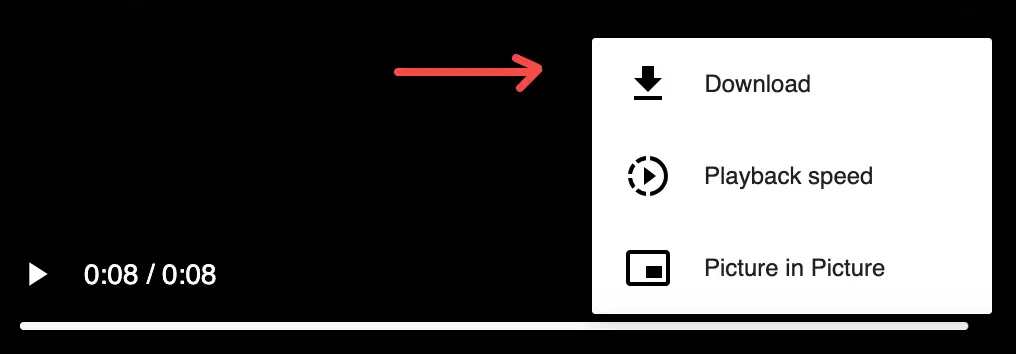
Google’s official Chrome download instructions note that videos may expose a player download control and that the owner or hosting site can prevent that action. When no download action is offered, do not assume that repeatedly clicking the same result will change the source permission.
7. Choose a Quality That Actually Exists
No 1080p result does not mean the downloader is broken. TwitterShots lists the MP4 variants it can retrieve; it cannot generate detail missing from the source upload. Choose the highest accessible quality shown for the post.
Account, usage, source-media, and platform availability can influence the options. Do not trust a downloader that promises to turn every low-resolution post into genuine 1080p or 4K without re-encoding—the pixels cannot be recovered from a smaller source.
8. Reload or Switch Variants if Playback Is Black
First play the original post on X. If the source itself is black or unavailable, wait for X or the post owner to resolve it. If the source plays but the opened MP4 does not, reload the result once, select another available variant, or use another current browser.
A partially transferred file may also fail locally. Delete the incomplete copy and download it again instead of repeatedly opening the same damaged file. If only one media player fails, test the MP4 in the browser before assuming the file is invalid.
Related Guides
- Twitter Video Download — primary tool and responsible-use landing page.
- How to Download a Twitter Video as MP4 — the successful three-step workflow, devices, and quality selection.
- Download Twitter Videos on iPhone and Android — Safari and Chrome save steps and file locations.
- Twitter MP4 Downloader — focused MP4 retrieval page.
- SSSTwitter Video Downloader Guide — SSSTwitter workflow, limitations, and alternatives.
Frequently asked questions
- Why is my Twitter video download not working?
- The most common causes are an incomplete post URL, a private or deleted post, a post without supported native video, an expired sign-in session, a temporary retrieval error, or browser download controls. Check the original post first, then copy its full x.com or twitter.com status URL and retry.
- What does “No video found” mean?
- It means the downloader could not find supported video media in the supplied post or supported quoted post. The URL may point to text, photos, an external player, unavailable media, or a post whose access changed. Confirm the original public post still plays a native video.
- Why does the Twitter video open in a new tab instead of downloading?
- Opening the MP4 in a new tab is an expected part of the TwitterShots workflow. Use the video player download button, browser menu, share menu, or Save video as command. The exact control depends on the browser and device.
- Why is the downloaded Twitter video black or not playing?
- First confirm the original post still plays, then reload the MP4 result or choose another available variant. An incomplete transfer, stale link, browser decoding issue, extension, or changed source availability can affect playback. Update the browser or try another current browser before downloading again.
- Why is there no 1080p or HD option?
- TwitterShots can only show MP4 qualities it can retrieve for the source post. It cannot create missing detail or upscale a low-resolution upload. Source availability, account access, and usage limits may affect the options shown.
- Can TwitterShots download private or deleted X videos?
- No. TwitterShots does not bypass private accounts, deleted posts, age restrictions, regional restrictions, or other X access controls. If the source post is unavailable, the downloader cannot restore its video.
Retry a Supported Public Video
Copy the full X or Twitter status URL, paste it into TwitterShots, and retrieve the MP4 results currently available for that public post.
Open Twitter Video Download- Status URL Validation
- Public Posts Only
- Available MP4 Results
- Clear Access Limits